Best Keyboard for Math Teachers
You are writing a worksheet instruction. The words are ready, but you still need ≤. Finding that one symbol interrupts the sentence.
For teachers who regularly mix words and math symbols, our pick is Nitrax Mathematical Keyboard: a compact physical computer keyboard with letters and mathematical, Greek and scientific symbols printed on its keys. After setup, key combinations enter those symbols into your document.
The math between the equations
Teaching materials need more than complete formulas. Instructions, slide prompts and feedback often need just one symbol inside ordinary text.
| Material | What you write |
|---|---|
| Worksheet | List the integers satisfying 0 ≤ x ≤ 5. 012345 |
| Geometry slide | Explain how you found angle θ. |
| Feedback | Keep π in your answer until the final step. |
A physical math keyboard earns its place when these small insertions are a regular part of lesson preparation.
Find the symbol on the key
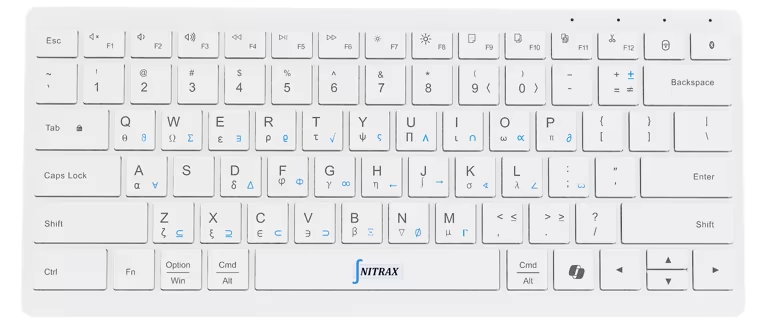
On Nitrax Mathematical Keyboard, π is printed in gray on P, θ in gray on Q, and ≤ in gray on the comma key. Blue and gray markings identify two sets of symbols accessed through key combinations.
You can look at the key to find the symbol, then continue the explanation on the same keyboard. The printed markings give you a visible reference while you learn the combinations.
When your existing keyboard is enough
If you only occasionally write math, your existing keyboard and document editor may meet your needs.
In Word, start with Insert > Equation. Choose a structure, such as a fraction, and replace its placeholders with your values. Microsoft documents this workflow in its equation guide.
Choose Nitrax Mathematical Keyboard when frequent symbol entry inside sentences is the problem you want to solve. Keep an equation editor for stacked fractions and structured expressions. The keyboard enters symbols; it does not calculate answers or replace LaTeX.
Check the computer where you prepare lessons
- School installation rules: the printed symbol layers need companion software setup. On a managed computer, confirm that your school permits the required installation before buying.
- Your writing apps: symbol and font support varies. Check the symbols you use in your document editor, slide app and learning platform.
- Your typing preferences: compare the compact layout with your preferred keyboard size. Printed math symbols are useful, but comfort still matters for long marking sessions.
For individual accessibility needs, explore math-writing options to evaluate alongside your school-computer checks.
For lecture notes and lab reports, see keyboard choices for STEM students.
Preparing a handout in Writer? See typing math in LibreOffice Writer.
For typed assignments, see the keyboard guide for math homework.
Bring math symbols into your lesson writing
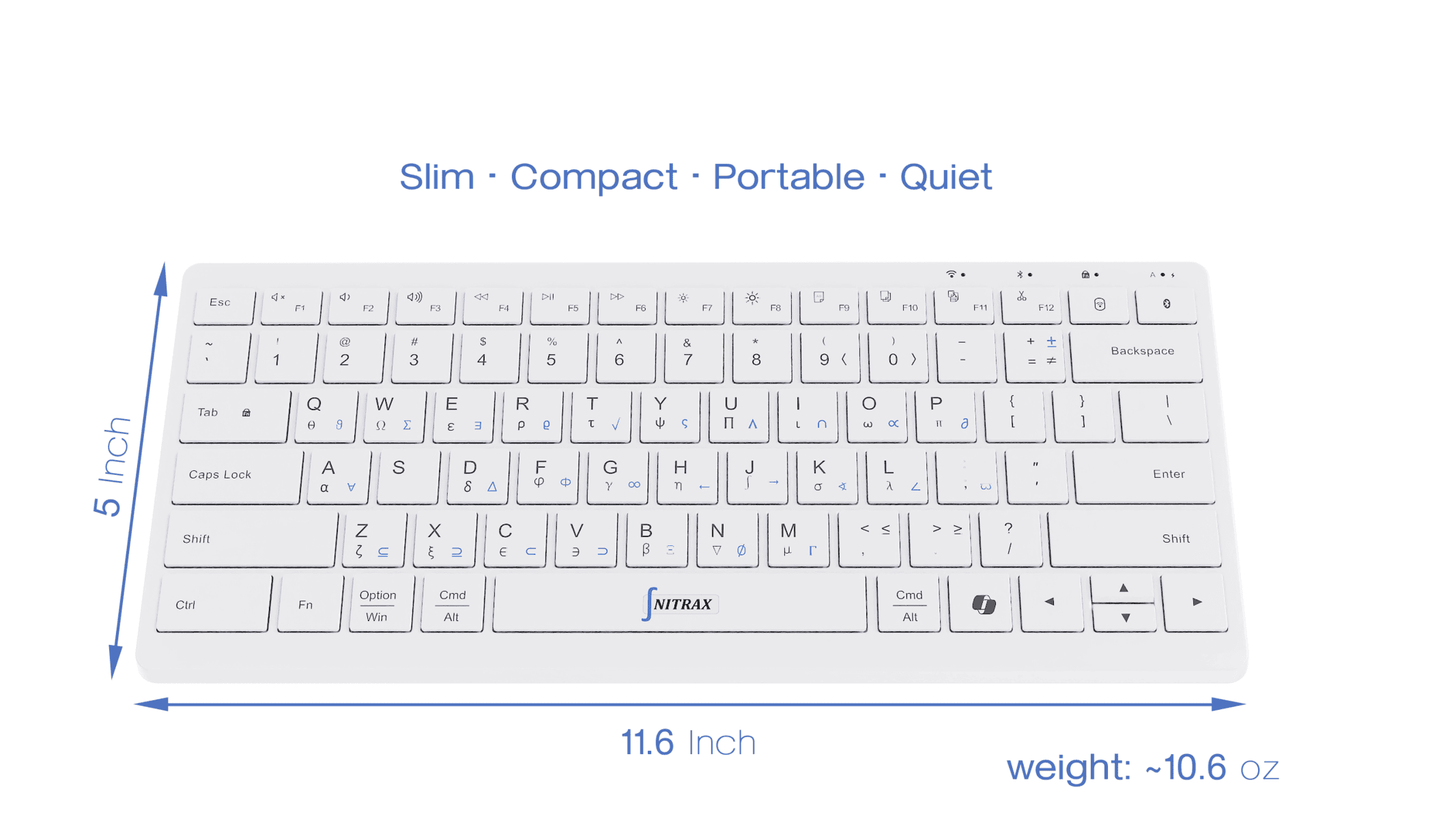
If worksheets, slides and feedback regularly send you searching for symbols, choose Nitrax Mathematical Keyboard to type the words and notation from the same physical keyboard.
Buy nowPublished by the maker of Nitrax Mathematical Keyboard.