Unlock Math Mode in 60 seconds
Your Nitrax Math Keyboard works as a normal keyboard right away. To unlock the printed math symbols (blue/gray layers) on macOS, you’ll use the lightweight Nitrax menu bar app. Once installed and enabled, you can type math instantly in Word, Google Docs, Notes, and more.
Power ON
Switch on the keyboard.
Connect
2.4G dongle or Bluetooth.
Download + open
Nitrax Math Keyboard.dmg
Math Mode ON
Menu bar icon at the top.
Type √
Ctrl + Option + T → √
Software (macOS App)
-
1
-
2
Open the app and follow the setup assistant
The app guides you through the essential setup so everything is ready properly on macOS. -
4
Enable Math Mode using the menu bar icon (top-right of your screen)
Open the menu bar app to turn Math Mode ON/OFF, enable Start at login, open the quick guide, or quit the app.
First success (do this now)
Open any app where you can type (Word, Google Docs, Notes…). Then try:
Ctrl + Option + T → √
If you see √ appear, everything is working.Ctrl + Option + Shift + J → ∫
Gray layer = same logic, with one extra key: Shift.Shortcuts (always the same)
Ctrl + Option → Blue symbols
Use the symbols printed in blue on the keys.Ctrl + Option + Shift → Gray symbols
Use the symbols printed in gray on the keys.Menu bar icon: what to click
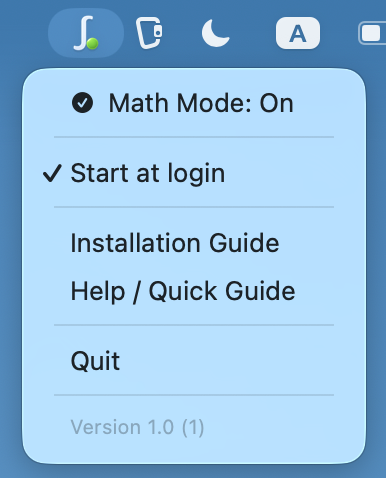
• Math Mode ON/OFF enables the printed math layers while keeping normal typing unchanged.
• Start at login launches the app automatically whenever you start your Mac.
• Help / Quick Guide opens this page.
• Quit closes the app completely. To use math shortcuts again, launch the app.
Set it once: after you enable Start at login, the app will be ready each time you turn on your Mac.
Hardware (Keyboard)
Power & sleep
Turn the keyboard ON using the physical switch. It automatically enters sleep after about 10 minutes of inactivity.
Keyboard OS mode (important)
Make sure the keyboard is set to the correct OS mode so the keys behave as expected.
Fn + W → Mac mode
Use this for macOS and the Nitrax mac app.Fn + Q → Windows mode
Use this when you want standard Windows key behavior on a PC.macOS
For the best macOS experience, switch the keyboard to Mac mode with Fn + W before using the software.
Connectivity
Choose your connection mode
The keyboard can connect in 2.4G mode using the USB receiver, or in Bluetooth mode. For Bluetooth, the first connection requires entering pairing mode manually.
2.4G (USB dongle)
-
1
Take out the USB receiver
The 2.4G dongle is stored inside the keyboard for travel. -
2
Plug the dongle into your Mac
Use a direct USB port or adapter if needed. -
3
Press the 2.4G button on the keyboard
The 2.4G indicator should light up, confirming that 2.4G mode is selected.
Bluetooth pairing
-
1
Press the Bluetooth button once
The Bluetooth mode LED indicator light will turn on. -
2
Press and hold the Bluetooth button for 3 seconds
The Bluetooth LED will flash rapidly. This means the keyboard is now in pairing mode. -
3
Open Bluetooth settings on your Mac
Open your Mac’s Bluetooth settings and look for a new device. -
4
Select the keyboard in the device list
The keyboard name will appear as IOP582/583/584. -
5
Confirm the connection if macOS asks
If your Mac shows a confirmation message, simply validate it to finish pairing.
LED flashing fast = pairing mode active.
Good to know
The keyboard remembers the last mode used
After the first setup, you usually won’t need to pair it again unless you remove the device from your Mac.If Bluetooth doesn’t show up
Make sure the Bluetooth light is flashing rapidly. If it is only solid, pairing mode is not active yet.If it was paired before but won’t reconnect
Remove the device from your Bluetooth settings, then repeat the Bluetooth pairing steps from the beginning.Quick checklist
Keyboard ON?
Make sure the physical power switch is ON.Connected? (2.4G or Bluetooth)
If you use the dongle, make sure it’s plugged into your Mac. If you use Bluetooth, make sure the device is paired.Mac mode? (Fn + W)
Recommended for the macOS software and standard Mac key behavior.App running + Math Mode ON?
Menu bar icon visible · click it to open the menu and enable Math Mode.- For the most reliable setup, turn the keyboard ON before starting pairing.
- If you want the simplest setup, use the 2.4G dongle.
- Bluetooth device name: IOP582/583/584.