Full Documentation for Windows and macOS
The Nitrax Mathematical Keyboard is a compact physical keyboard with mathematical, Greek, and scientific symbols printed on blue and gray key layers. This guide explains the supported setup paths, with detailed instructions for the macOS build 16 companion app.
Compatibility
The physical Nitrax Math Keyboard supports the current Windows 11, Windows 10, and macOS 15-or-later setup paths. Those statements describe product support, not a claim that every operating-system release, computer model, app, or browser version has been physically tested.
Windows
Use the Windows guide for the Windows companion app, Windows keyboard mode, and current Windows instructions.
Mac
The build 16 Mac companion app works with Karabiner-Elements to enable the printed blue and gray symbol layers. Both the app and helper include Apple silicon and x86_64 code and declare macOS 15.0 as their minimum target.
The keyboard remains a physical hardware keyboard. The companion software enables its printed symbol layers; it is not a virtual keyboard, calculator, or generic keypad.
Back to top ↑Choose Windows or Mac setup
Follow the guide for the computer you are setting up. These are the canonical setup destinations.
Set up on Mac
Open the current macOS guide for macOS 15 or later and the build 16 companion app.
Open Mac setup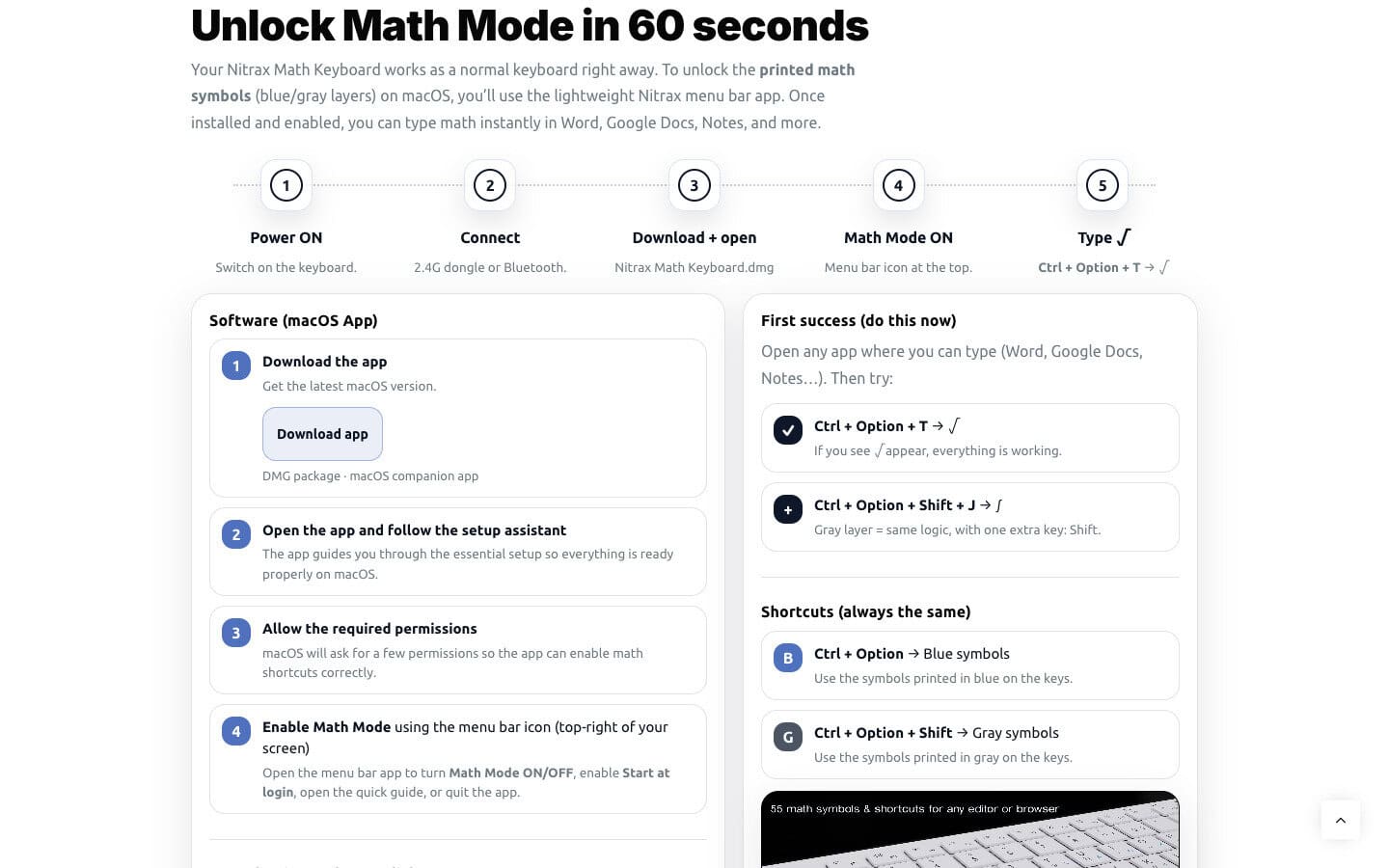
Windows setup
On Windows 11 or Windows 10, follow the dedicated Windows guide. It contains the current companion-app steps and Windows-specific checks. Press Fn + Q once to select Windows mode on the physical keyboard.
This Mac documentation does not add a separate Windows package, reproduce Windows screens, or claim a Windows validation campaign. Use the maintained Windows guide as the source for that setup.
Open Windows setupBack to top ↑Mac setup
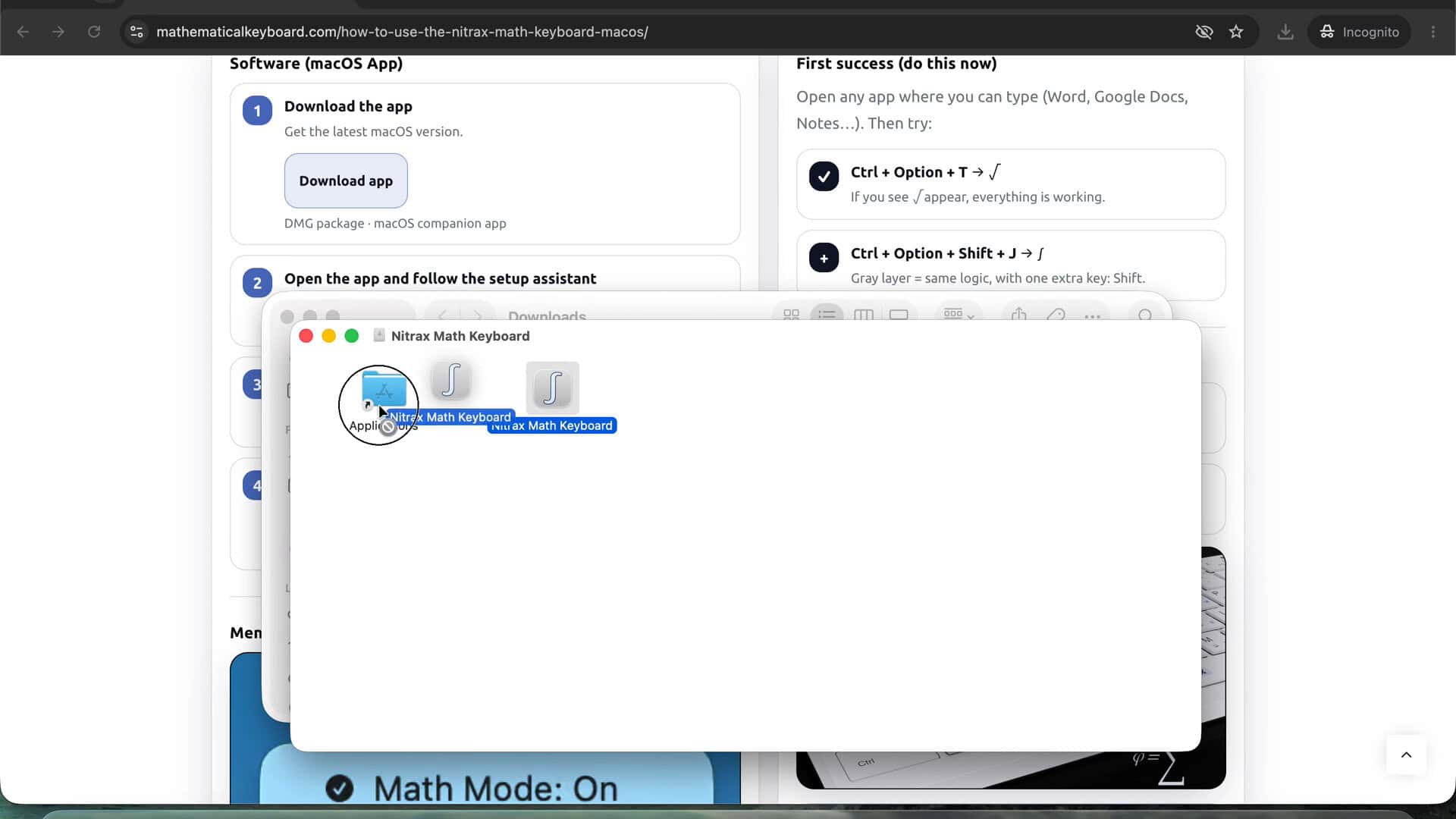
Use the official Mac setup page to obtain the current app. Open the downloaded DMG, drag Nitrax Math Keyboard onto Applications, then open the copy in Applications. If macOS shows its normal first-launch confirmation, continue only when the app came from the official Nitrax setup page.

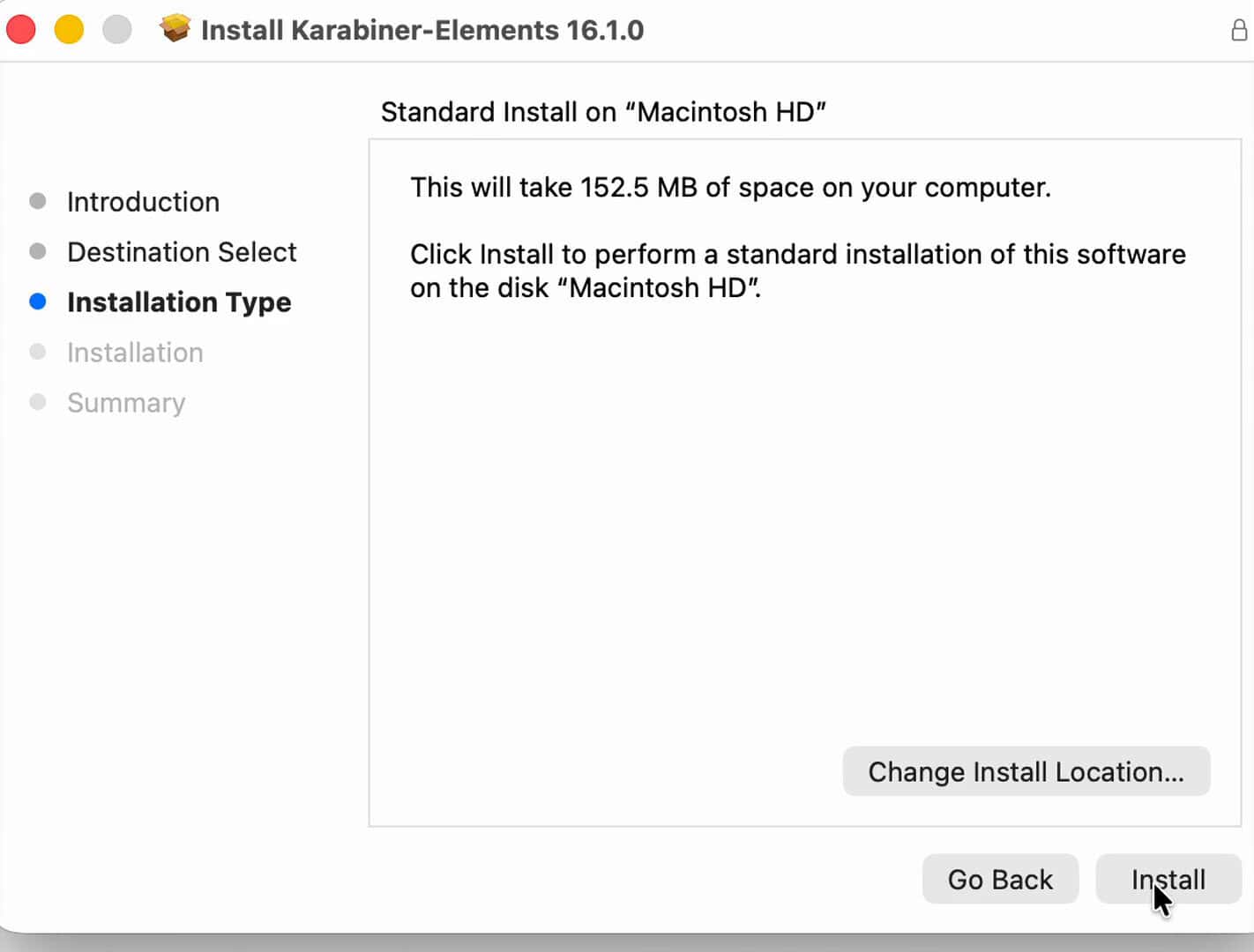
Install Karabiner-Elements 16.1.0
The exact automatic baseline for build 16 is Karabiner-Elements 16.1.0. Nitrax downloads the official installer when needed and opens Apple Installer. Complete the installer; Nitrax never sees the administrator password entered into macOS Installer.

Allow both background services
When requested, open System Settings > General > Login Items & Extensions and enable both Karabiner-Elements background items. The publisher may appear as Takayama Fumihiko, the developer of Karabiner-Elements.

Allow Karabiner Accessibility
In System Settings > Privacy & Security > Accessibility, enable Karabiner-Core-Service.

Allow Input Monitoring only if requested
This permission is conditional. Nitrax asks for Input Monitoring only when Karabiner still reports that it is required after Accessibility is enabled.

Enable the Driver Extension
If requested, open System Settings > General > Login Items & Extensions, select the information control next to .Karabiner-VirtualHIDDevice-Manager, enable Driver Extension, select Done, and return to Nitrax.

Choose ANSI
Open Karabiner-Elements and select ANSI for its virtual keyboard type. The shipping Nitrax Mathematical Keyboard uses an ANSI physical layout. If the selected Karabiner profile deliberately uses ISO or JIS for other rules, contact support before changing the shared profile.

Allow Nitrax Accessibility
In System Settings > Privacy & Security > Accessibility, enable Nitrax Math Keyboard.

Confirm the three Nitrax rules
Nitrax installs and verifies Math Keyboard - Gray layer, Math Keyboard - Blue layer, and Browser Compatibility - Math Mode. It is designed to preserve unrelated Karabiner rules, profiles, settings, and their order.

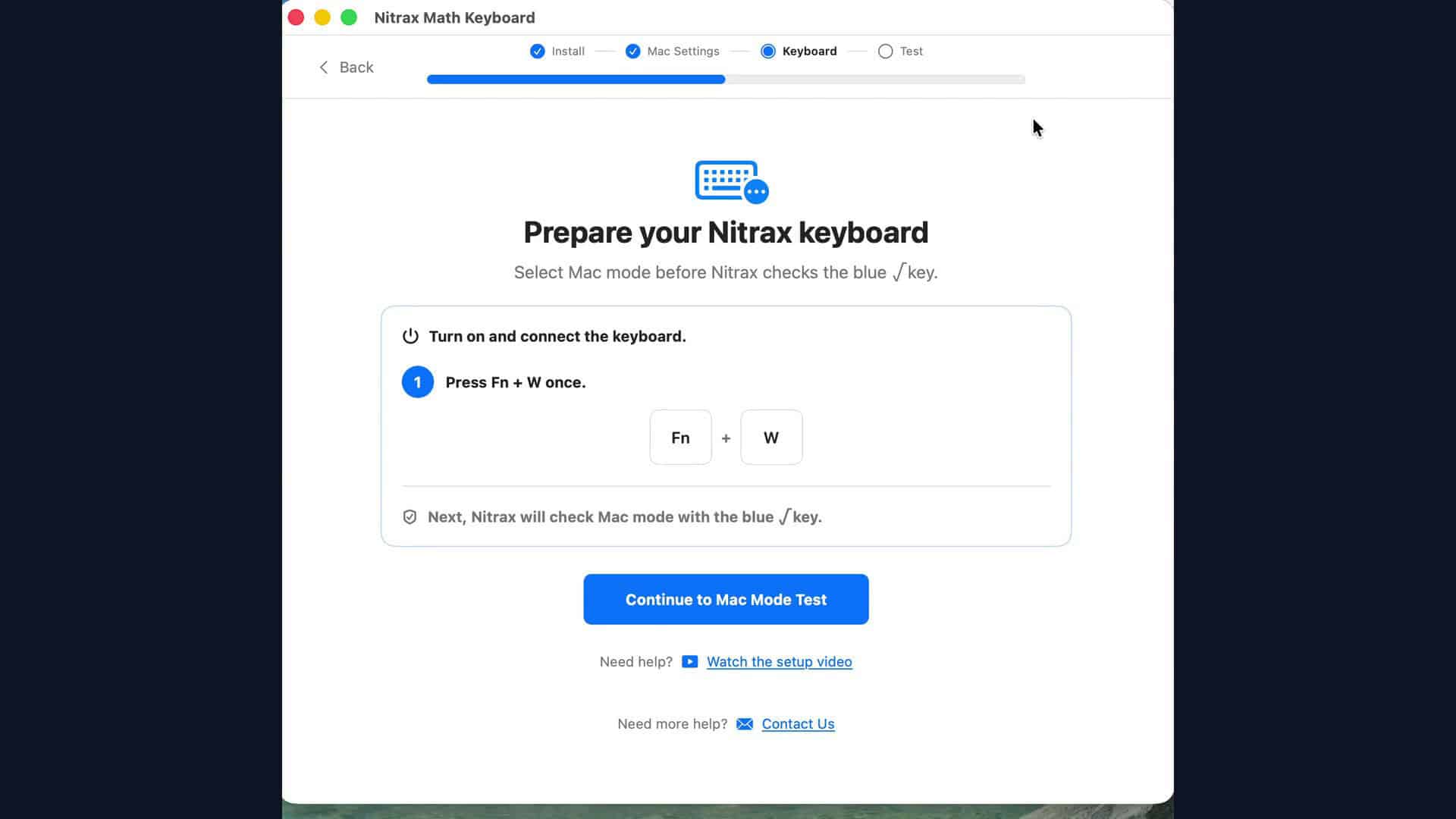
Select Mac mode and test both layers
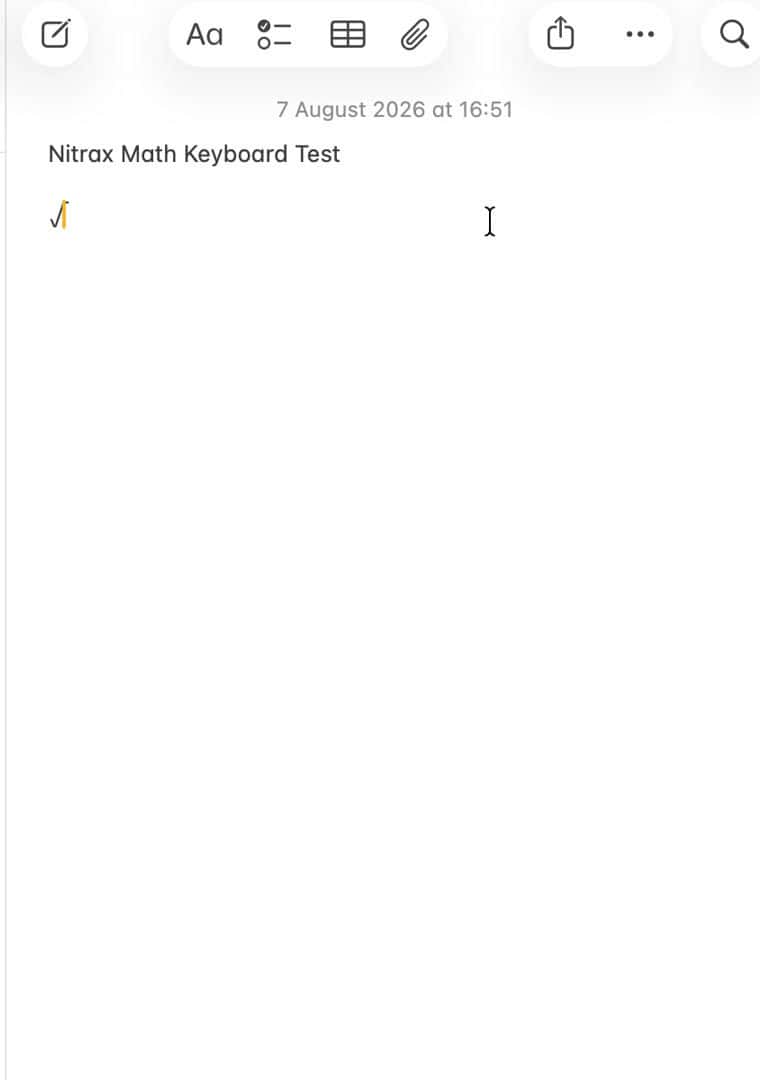
Press Fn + W once. With Math Mode on, use the left-hand modifier keys: Control + Option + T should type √, and Control + Option + Shift + J should type ∫.


Using the blue and gray symbol layers
The symbol labels are printed directly on the physical keys. Keep Math Mode on, then use the printed color to choose the key combination.
| Printed layer | Mac key combination | Build 16 check |
|---|---|---|
| Blue | left Control + left Option + printed key | Control + Option + T types √ |
| Gray | left Control + left Option + left Shift + printed key | Control + Option + Shift + J types ∫ |
The output is a Unicode text character. Use an equation editor or typesetting tool when you need structured fractions, matrices, alignment, or complete equation layout.

Math Mode and web browsers on Mac
The Nitrax menu-bar menu controls Math Mode. When Math Mode is on, the physical Control and Option modifiers are reserved for Nitrax key combinations in the validated browser route. Some normal browser combinations that use those modifiers may therefore be unavailable. Turn Math Mode off to restore normal browser modifier behavior.
The Browser Compatibility - Math Mode rule supports the current route for Chrome, Safari, Edge, and Firefox. This does not mean that every version of every browser was manually tested. If the app stops unexpectedly, browser capture becomes inactive rather than remaining enabled in the background.
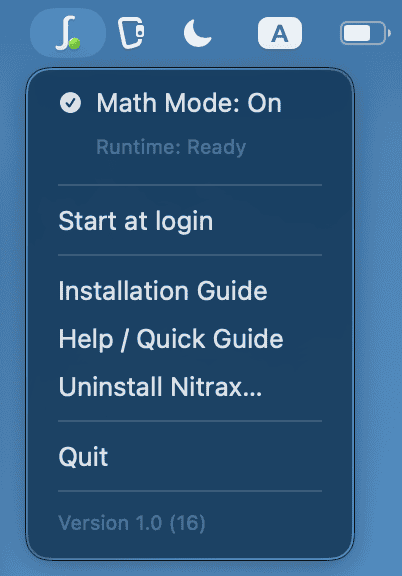
If symbols work in a desktop writing app but not in a browser, confirm that Browser Compatibility - Math Mode is enabled and Math Mode is on.
Back to top ↑Troubleshooting on Mac
Open the item that matches what you see. Preserve existing Karabiner settings and follow the single missing requirement shown by Nitrax.
The app opens from Downloads or the disk image
Drag Nitrax Math Keyboard onto the Applications shortcut in the opened disk image. Then open it from Applications.
macOS says the app was downloaded from the Internet
This is the normal first-launch confirmation for a downloaded app. Continue only when the app is the Nitrax download obtained from the official Mac setup page. The exact wording can name the browser or service that downloaded it.
Nitrax says another app is using the same name
Open Applications and inspect the conflicting item. Nitrax stops safely and does not replace an unrelated same-name application. Contact support if the correct item is unclear.
Karabiner will not download or its installer was closed
Check the Internet connection and select Download Again. If the installer was closed, return to Nitrax and select Open Installer Again or Show Installer. If Nitrax rejects a download, download it again through Nitrax; there is no customer bypass.
Karabiner is installed, but setup does not continue
Return to Nitrax and complete the single missing requirement it displays. Common causes are disabled background services, missing Accessibility, a disabled Driver Extension, or a virtual keyboard type other than ANSI. Input Monitoring is needed only when the guide requests it.
The Driver Extension step keeps appearing
Open Login Items & Extensions, use the information control next to .Karabiner-VirtualHIDDevice-Manager, enable Driver Extension, select Done, and return to Nitrax. If macOS or the official installer requests a restart, restart and reopen Nitrax.
ANSI cannot be confirmed
Verify that the currently selected Karabiner profile uses ANSI as its virtual keyboard type. If you need ISO or JIS for other rules in that profile, contact support before changing it.
The blue or gray symbol test fails
Press Fn + W once, make sure the test field has focus and Math Mode is on, then retry with the left Control and left Option keys. Blue: Control + Option + T types √. Gray: Control + Option + Shift + J types ∫.
Symbols work in a desktop app but not in a browser
Confirm that Browser Compatibility - Math Mode is enabled and Math Mode is on. Turn Math Mode off temporarily when you need normal browser combinations that use Control or Option.
Existing or older Karabiner rules are present
Nitrax preserves unrelated settings and refuses unknown configurations. For an older Nitrax mapping, follow the guided migration and remove only the old Nitrax rules through Karabiner's Complex Modifications interface. Do not replace the whole Karabiner configuration.
A newer Karabiner version is already installed
Nitrax does not silently downgrade it. It performs read-only checks and may direct you to a safe manual path. Karabiner-Elements 16.1.0 is the exactly validated automatic baseline for build 16.
Nitrax still reports a helper or readiness problem
Complete the displayed requirement and choose Check Nitrax Again. If the problem remains, use Need more help? Contact Us. Keep your existing Karabiner configuration.
Updating or reinstalling on Mac
Install updates through the Nitrax guide. Keep the app in Applications and keep your Karabiner configuration.
Install a newer build
- Open the current Mac setup page and obtain the new app.
- Open the new copy and choose the guided update action.
- Wait for the verified Applications copy to open successfully.
The exact same candidate is reused instead of overwritten. A legitimate older Nitrax copy may be replaced, but an older candidate cannot overwrite a newer installed version.
If replacement is interrupted
Nitrax keeps a recovery copy until the replacement opens successfully. An interrupted or failed replacement restores or preserves the previous installed copy. It also refuses to replace an unrelated same-name application.


Uninstalling on Mac
Remove the Mac app and only its owned mappings
- Open the Nitrax menu-bar menu.
- Choose Uninstall Nitrax....
- Follow the guide to unregister the Nitrax login item and prepare removal of its mappings.
- In Karabiner-Elements, remove only Math Keyboard - Gray layer, Math Keyboard - Blue layer, and Browser Compatibility - Math Mode from the active profile.
- When Nitrax reveals the verified app in Finder, move it to the Trash.
- Select the final Quit action in the Nitrax guide.
If the app was deleted directly in Finder
Deleting the app directly skips the guided preference restoration. Open Karabiner-Elements, open Update, and re-enable update checking. Remove only the three Nitrax rules listed above if they remain.
Nitrax does not delete the whole Karabiner configuration or remove unrelated rules, profiles, assets, or global settings. Cancelling before the final Quit restores the requested login-item state and safely returns an archived Nitrax mapping when possible.
Back to top ↑Privacy and security
Nitrax connects to the official Karabiner release host only when it needs to download the supported installer. The Mac app adds no telemetry. Its diagnostic reports omit typed keys, clipboard contents, document contents, and the contents of unrelated Karabiner rules.
- The Mac app and its embedded helper are Developer ID signed, use the hardened runtime, and are notarized.
- Nitrax verifies the identity of its own embedded helper and refuses unsafe application or configuration states.
- Nitrax never sees the administrator password entered into macOS Installer.
- Nitrax does not modify the Karabiner-Elements app or its official installer.
- Accessibility and related permissions are used to produce requested symbols and support the keyboard behavior described in this guide.
What has been tested
The table separates hands-on validation from release support and items that were not tested. Rosetta results describe translated x86_64 execution on Apple silicon; they are not native Intel testing.
| Platform or behavior | Classification | Meaning for build 16 |
|---|---|---|
| Windows 11 and Windows 10 | Supported by current product copy | Use the Windows guide. The Mac release work does not provide a Windows validation campaign. |
| macOS 15 or later | Supported by release definition | The app and helper declare macOS 15.0 as the minimum on both processor slices. |
| Apple silicon M2 on macOS 26.6 | Supported and tested | The final signed and notarized build was tested on real M2 hardware. |
| Native arm64 app and helper | Supported and tested | Both processes ran natively as arm64. |
| x86_64 app and helper under Rosetta on Apple silicon | Supported and tested | Both processes ran as translated x86_64 and remained stable. |
| Native Intel Mac hardware | Supported by universal binary, not tested | The binaries contain x86_64 code, but no native Intel Mac campaign was run. |
| Actual macOS 15.x execution | Supported by deployment target, not tested | The minimum target was verified; runtime testing was not performed on macOS 15.x. |
| Clean Mac installation and downloaded DMG flow | Supported and tested | The final build was installed in a clean environment, and the drag-to-Applications and first-launch flow was completed. |
| Connected Gatekeeper, notarization, and attached tickets | Supported and tested | The app and DMG passed the connected trust checks. |
| Gatekeeper launch without a network connection | Not tested, owner-waived | This check was not performed and must not be treated as passed. |
| Karabiner-Elements 16.1.0, Driver Extension, ANSI, and three Nitrax rules | Supported and tested | The exact baseline and its state persisted through the release checks. |
| Preservation of unrelated Karabiner state | Supported and tested in controlled validation | Non-Nitrax settings remained unchanged during the controlled checks. |
| Chrome, Safari, Edge, and Firefox route | Supported by validated mapping and automated coverage | The Browser Compatibility mapping is included. Not every browser version was manually tested. |
| Physical Nitrax keyboard on the owner's local Mac | Supported and tested | The normal arm64 onboarding and physical symbol checks were completed. |
| Every Mac model and every macOS 15+ release | Not tested | One tested hardware and OS combination does not represent every possible combination. |
Contact and setup video
For a visual walkthrough, open the Mac setup page and choose Watch the Mac setup video. The same page contains the current guided setup route.
When contacting support, include your macOS version, the Nitrax version shown in the menu, Bluetooth or 2.4G connection, Runtime status, the exact setup step, and whether both test combinations work in Apple Notes.
Back to top ↑