Start typing math in 60 seconds
Your Nitrax Math Keyboard works as a normal keyboard right away. To unlock the printed math symbols (blue/gray layers), open the Nitrax Mathematical Keyboard app for Windows. Once it’s on, you can type math instantly in Word, Google Docs, Notepad, and more.
Power ON
Switch on the keyboard.
Connect
2.4G dongle or Bluetooth.
Install the app
Nitrax Mathematical Keyboard.
Math Mode ON
Tray icon near the clock.
Type √
Left Ctrl + Left Alt + T → √
Nitrax Mathematical Keyboard for Windows
-
1
Install Nitrax Mathematical Keyboard
Install the current version from Microsoft Store. Windows also handles future updates. Microsoft Store · Automatic updates · No admin rights required -
2
Open Nitrax Mathematical Keyboard
Open it from the Store or the Windows Start menu. Math Mode is active by default. -
3
Enable Math Mode using the tray icon (near the clock)
Double-click the tray icon to toggle Math Mode ON/OFF.
App window and tray icon
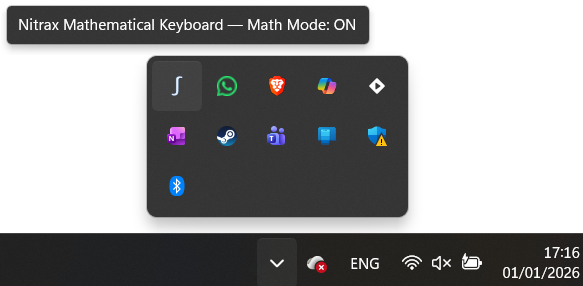

• Math Mode ON/OFF enables the printed math layers while keeping normal typing unchanged.
• Start with Windows launches the app automatically at startup.
• Help / Quick Guide opens this page.
• Quit closes the app completely. Open the app again to use the printed math layers.
Set it once: after you enable Start with Windows, the app will be ready every time you turn on your PC.
First success (do this now)
Open any app where you can type (Word, Google Docs, Notepad…). Then try:
Left Ctrl + Left Alt + T → √
If you see √ appear, everything is working.Left Ctrl + Left Alt + Shift + J → ∫
Gray layer = same logic, with one extra key: Shift.Printed symbol layers
Left Ctrl + Left Alt → Blue symbols
Use the symbols printed in blue on the keys.Left Ctrl + Left Alt + Shift → Gray symbols
Use the symbols printed in gray on the keys.Hardware (Keyboard)
Power & sleep
Turn the keyboard ON using the physical switch. It automatically enters sleep after about 10 minutes of inactivity.
Keyboard OS mode (important)
Make sure the keyboard is set to the correct OS mode so the keys behave as expected.
Fn + Q → Windows mode
Use this for the Windows app and the math shortcut layers.Fn + W → Mac mode
Use this when you want standard Mac key behavior.Connectivity
Choose your connection mode
The keyboard can connect in 2.4G mode using the USB receiver, or in Bluetooth mode. For Bluetooth, the first connection requires entering pairing mode manually.
2.4G (USB dongle)
-
1
Take out the USB receiver
The 2.4G dongle is stored inside the keyboard for travel. -
2
Plug the dongle into your computer
Use a direct USB port if possible. -
3
Press the 2.4G button on the keyboard
The 2.4G indicator should light up, confirming that 2.4G mode is selected.
Bluetooth pairing
-
1
Press the Bluetooth button once
The Bluetooth mode LED indicator light will turn on. -
2
Press and hold the Bluetooth button for 3 seconds
The Bluetooth LED will flash rapidly. This means the keyboard is now in pairing mode. -
3
Open Bluetooth settings on your PC or laptop
Click Add Bluetooth or other devices. -
4
Select the keyboard in the device list
The keyboard name will appear as IOP582/583/584. -
5
Confirm the connection on your computer
If your computer shows a pairing window or confirmation message, simply validate it to finish connecting the keyboard.
LED flashing fast = pairing mode active.
Good to know
The keyboard remembers the last mode used
After the first setup, you usually won’t need to pair it again unless you remove the device from your computer.If Bluetooth doesn’t show up
Make sure the Bluetooth light is flashing rapidly. If it is only solid, pairing mode is not active yet.If it was paired before but won’t reconnect
Remove the device from your Bluetooth settings, then repeat the Bluetooth pairing steps from the beginning.Quick checklist
Keyboard ON?
Make sure the physical power switch is ON.Connected? (2.4G or Bluetooth)
If you use the dongle, make sure it’s plugged into your PC. If you use Bluetooth, make sure the device is paired.Windows mode? (Fn + Q)
Required for the Windows shortcut layers.App running + Math Mode ON?
Nitrax Mathematical Keyboard running · double-click the tray icon to toggle Math Mode.- For the most reliable setup, turn the keyboard ON before starting pairing.
- If you want the simplest setup, use the 2.4G dongle.
- Bluetooth device name: IOP582/583/584.
Need help?
Still stuck — or have a suggestion to improve this setup? We’d love to help. Use the Contact button above.