How the Nitrax Math Keyboard actually works.
Nitrax uses standard Unicode math symbols, then makes them accessible through physical key combination layers printed on the keyboard. The result is simple: press the key combination, insert the symbol, keep writing.
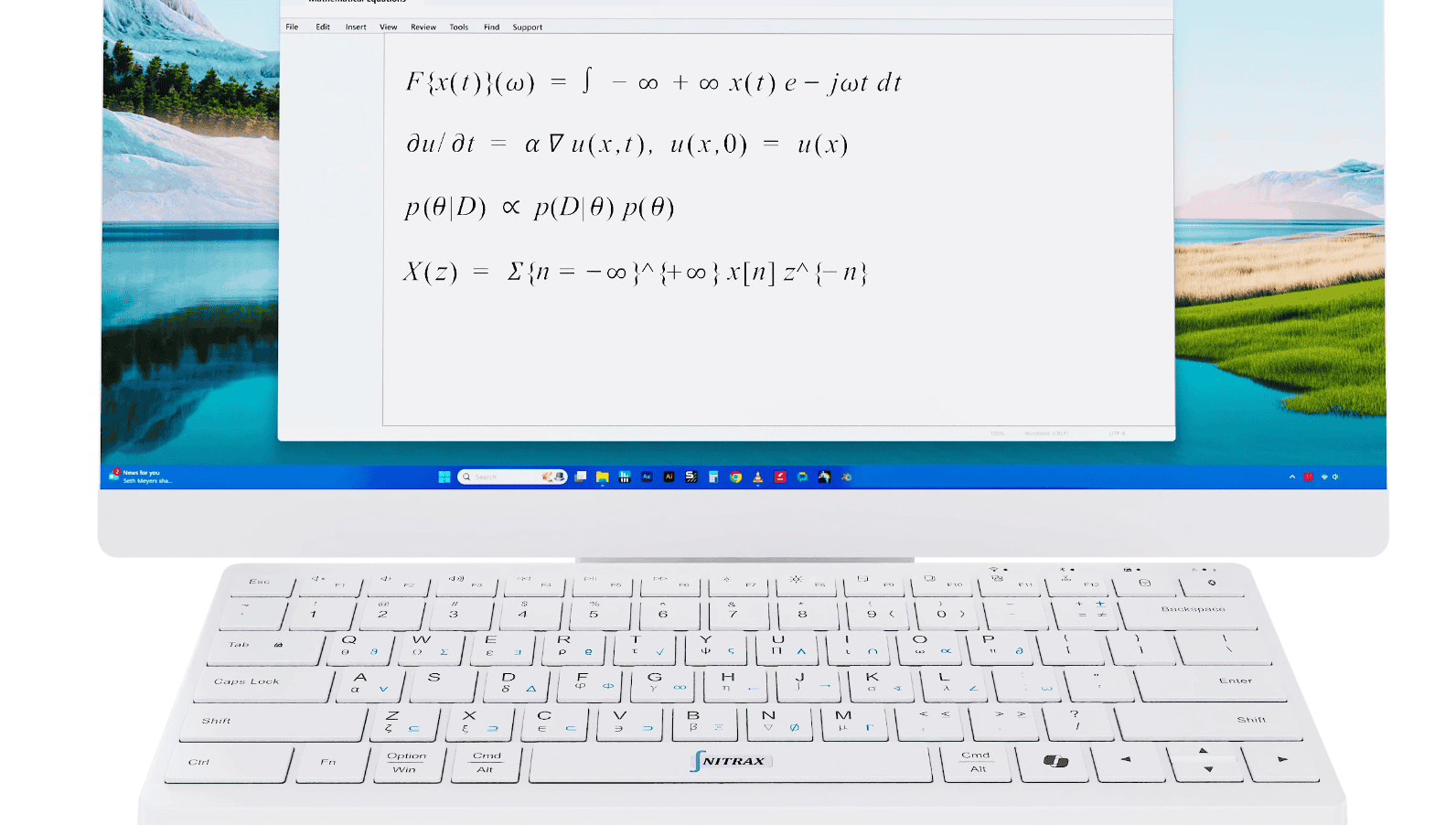
The idea is simple.
The keyboard does not generate images, screenshots, or a private math format. It inserts real text symbols such as √, α, π, ∫, Σ, ∈, ≤, ≥ and ≠.
Nitrax inserts real mathematical characters.
Most everyday math writing does not require a full equation editor. Very often, what you need is a clean standard character: α, β, π, √, ∫, Σ, ∈, ≤, ≥, ≠. These are Unicode characters, so they behave like normal text in many modern applications.
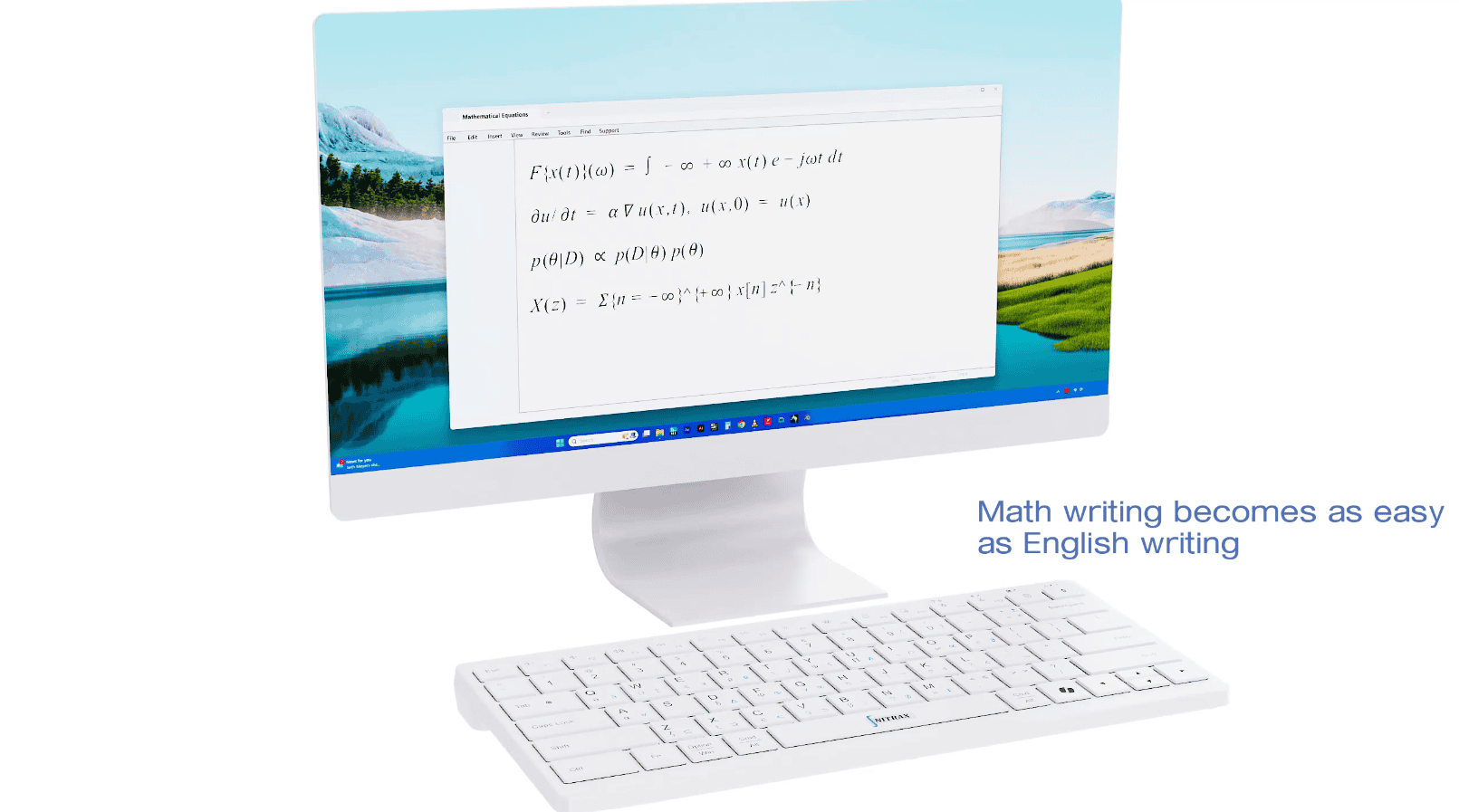
Clear, compact, readable, and made of real text characters.
Understandable, but visually noisy and less natural to read.
Plain text
Unicode symbols can be used in normal text fields, documents, emails, messages, and many web apps.
Portable
Because the symbols are standard characters, they usually copy, paste, save, and travel well between apps.
Math-friendly
Greek letters, operators, set symbols, arrows, and scientific characters become immediately accessible.
Unicode is excellent for symbols. It is not a full equation layout engine.
Nitrax is designed for fast symbol input in everyday writing. It is not trying to replace LaTeX, MathType, Word’s equation editor, or a computer algebra system.
| Good fit for Unicode | Better handled by LaTeX / equation tools |
|---|---|
| Single mathematical symbols: α, β, π, √, ∫, Σ, ∈, ∪, ≤, ≥, ≠ | Complex stacked notation: large fractions, matrices, aligned systems, multi-line derivations |
| Inline expressions: x² − y² ≥ 0, A ∪ B, n → ∞ | Professional typesetting: publication-quality formulas with precise layout control |
| Fast notes and explanations: homework, comments, slides, prompts, emails | Formal formula layouts: documents that require advanced equation formatting |
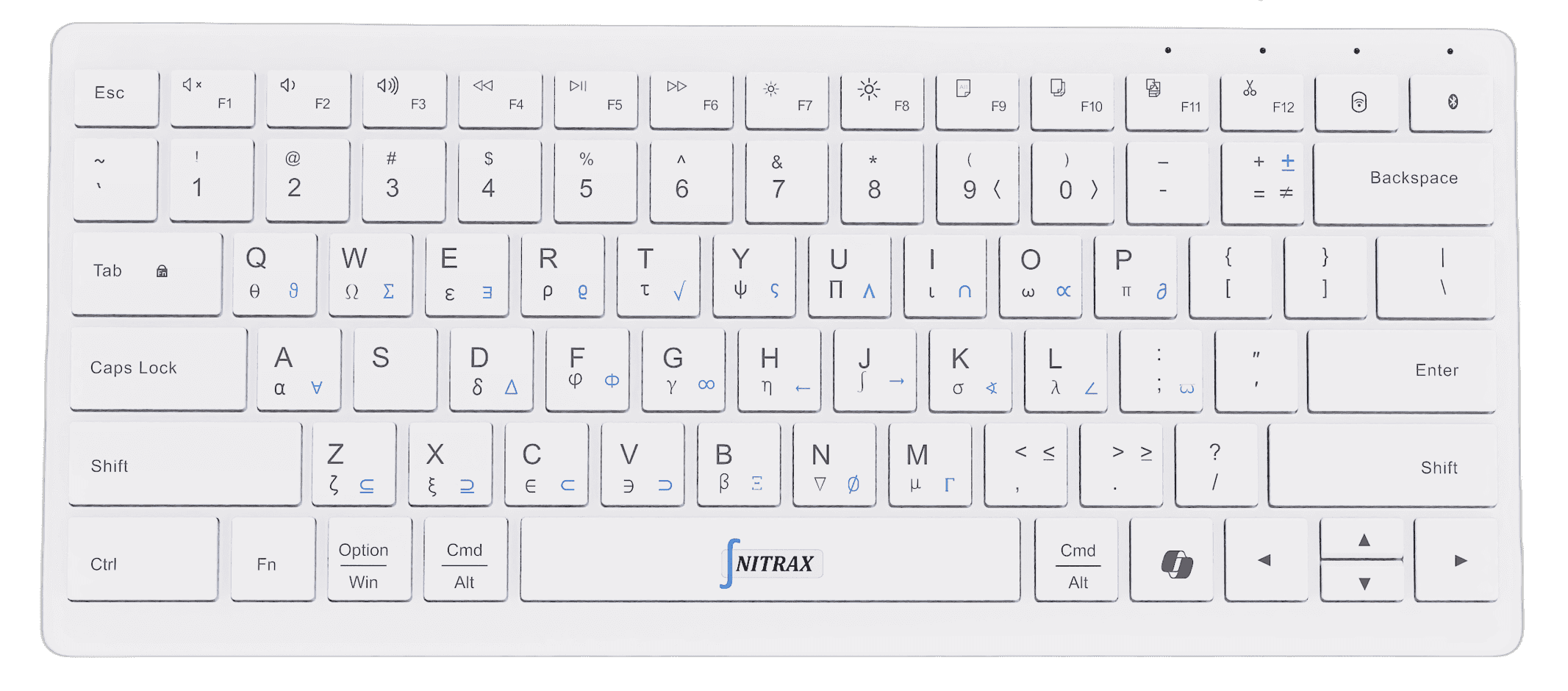
The keyboard uses printed blue and gray key combinations.
The printed symbols are organized into layers. Instead of opening a symbol menu, you hold a simple key combination and press the matching letter.
Windows
On Windows, the Nitrax companion app translates the printed key combinations into Unicode symbols.
macOS
On macOS, the same idea uses Control and Option. Karabiner-Elements recognizes the key combination, and the Nitrax helper inserts the symbol.
On Windows, a lightweight app turns key combinations into symbols.
The Windows app runs in the background. When Math Mode is on, it listens for the Nitrax key combination layers and inserts the matching Unicode character.
You press the printed key combination
For example, Ctrl + Alt + T for the blue symbol printed on the T key.
The app recognizes the combination
It understands that this key combination should produce a mathematical symbol, not normal text.
The symbol appears where you are typing
The active app receives a normal Unicode character such as √, α, π, ∫, or Σ.
On macOS, the same idea uses a different path.
macOS handles keyboard key combinations differently from Windows. The macOS version uses Karabiner-Elements to recognize the key combination, then a small Nitrax helper inserts the matching Unicode symbol.
Karabiner-Elements recognizes the key combination
For example: Control + Option + T. This is the macOS equivalent of the Windows key combination layer.
The Nitrax helper inserts the symbol
The helper completes the action and places the Unicode character into the active app.
The goal is not to trap your math inside one special editor.
Many math input tools work inside their own text box or require copying the result somewhere else. Nitrax takes a different approach: the keyboard produces useful math characters directly where you are already writing.
Hardware-first
The symbols are printed on physical keys, so the key combination system becomes visible and learnable.
Unicode-based
The output is standard text, which makes it useful across many documents, websites, and applications.
App-friendly
Nitrax is designed for the apps people already use, not for a single isolated writing environment.
A lightweight system for a simple promise.
Press the key combination printed on the keyboard. Insert the matching math symbol. Keep writing.
| Layer | What it does | Why it matters |
|---|---|---|
| Physical keyboard | Shows the blue and gray symbol layers directly on the keys. | The key combination system is visible, not hidden in a menu. |
| Unicode symbols | Provides the actual mathematical characters inserted into documents. | The result behaves like normal text in many apps and files. |
| Windows companion app | Turns Ctrl + Alt key combinations into the matching Unicode symbols. | Makes math typing fast while keeping the keyboard normal when Math Mode is off. |
| Karabiner-Elements on macOS | Recognizes Control + Option key combination combinations. | Allows macOS to use a similar printed key combination-layer experience. |
| Nitrax helper | Completes the final symbol insertion on macOS. | Keeps the final experience simple: press key combination, get symbol. |
Common technical questions.
Is this the same as LaTeX?
Why not use only an online keyboard?
Are the symbols images?
Can Unicode do full fractions and matrices?
Why does Windows need a companion app?
Why does macOS use Karabiner-Elements?
Real math symbols, typed from a real keyboard.
Nitrax combines physical key combinations, Unicode characters, and lightweight companion software to make everyday mathematical writing faster and more natural.