Math keyboard comparator

Math Keyboard Comparator: Physical, Virtual, and Equation Tools Compared

A math keyboard comparator should not only ask which tool has the most symbols. The real question is where you need to write math: in normal documents, in a calculator, in a web app, or inside a full equation editor.

This guide compares physical math keyboards, digital math keyboards, equation editors, virtual keyboards, calculator environments, and math input frameworks. The goal is practical: help students, teachers, and technical writers choose the fastest workflow for typing math symbols and equations.

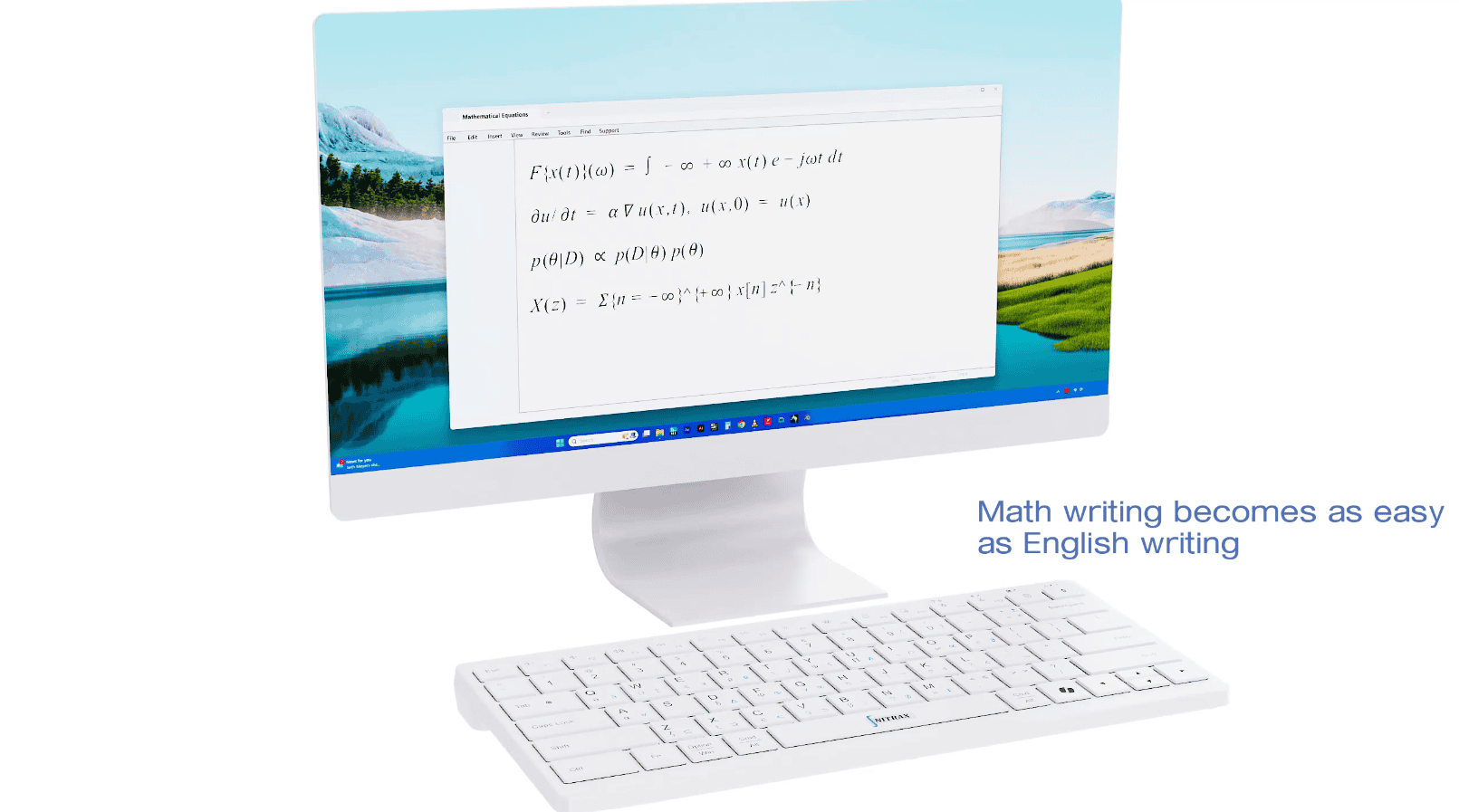
Nitrax Mathematical Keyboard with monitor showing equations and math writing made easy
Short version: for everyday writing in Word, Google Docs, slides, emails, and notes, a physical math keyboard solves a different problem than equation editors and virtual keyboards. It puts the symbols under your hands.

Quick verdict

If you write math often in normal computer apps, Nitrax Mathematical Keyboard is the strongest practical choice because it is a compact physical keyboard with math symbols printed directly on the keys.

If you need polished equation layout, use Word Equation, MathType, LibreOffice Math, Google Docs Equation Toolbar, LaTeX, Typst, or a similar editor. If you need a mobile on-screen keyboard, tools like ArithmeType iOS, SciKey, Numboard, or MathKey may help. If you need calculation, choose Desmos, GeoGebra, NumWorks, TI-Nspire, or Casio ClassPad. These are useful tools, but they are not the same as a physical keyboard for fast symbol entry while writing.

Best for everyday math writing

Nitrax Mathematical Keyboard

Best fit when the bottleneck is typing symbols directly in documents, notes, worksheets, slides, and emails.

Best for professional equations

MathType / Word Equation

Best fit when layout, matrices, chemistry, MathML, or formal equation formatting matters more than typing flow.

Best for calculation

Desmos / GeoGebra / NumWorks

Best fit when you want to calculate, graph, explore, or use a classroom calculator environment.

Math keyboard comparator table

Tool family Examples Best use Main strength Main limitation Best choice when…
Physical math keyboards Nitrax Mathematical Keyboard, Mathpad, ArithmeType Math Keyboard, ArithmeType Calculus Keyboard Typing math symbols with physical keys Visible symbols and faster repeated input Requires hardware purchase and setup You write math often in everyday apps
Equation editors Microsoft Word Equation, MathType, LibreOffice Math, Google Docs Equation Toolbar, Apple Pages equations Building structured formulas in documents Good layout, templates, matrices, and formal equation structure Can interrupt quick writing with menus, modes, or editor panels You need polished equation formatting
Virtual math keyboards MathLive, MathQuill-based editors, VisualMathEditor, ArithmeType iOS App, SciKey, Numboard On-screen symbol input on web or mobile No separate hardware needed Symbols stay behind taps, popups, or app-specific interfaces You are working on mobile or inside a web product
Calculator environments Desmos, GeoGebra, TI-Nspire CX II, Casio ClassPad, NumWorks Calculation, graphing, classroom exploration, exams Strong math functions, graphing, units, constants, and templates Not built as universal keyboards for normal writing apps You need to calculate more than you need to write
Scientific writing systems LaTeX, Typst, LyX, GNU TeXmacs Technical papers, long documents, structured scientific publishing Excellent final output and reproducible document structure Requires syntax, rendering, or a dedicated writing workflow You care more about final typesetting than direct symbol entry
Developer frameworks MathLive, MathKeyboardEngine, simpleclub math_keyboard Building math input into an app, LMS, or product Customizable input logic and format exports Not usually a ready-made writing tool for students You are a developer building a math editor

Why physical keyboards score differently

Digital tools often hide math symbols inside menus, popups, palettes, syntax, or rendering environments. That can be fine for final output, but it creates friction when the user simply wants to keep writing.

A physical math keyboard changes the input layer itself. The symbols are printed on the keys, and simple key combinations give access to the printed symbol layers. That matters for students and teachers who repeat the same symbols every day.

Printed symbolsPhysical keysDirect typingEveryday apps

When digital tools are still better

  • 1

    Formal equation layoutUse MathType, Word Equation, LibreOffice Math, Google Docs Equation Toolbar, LaTeX, or Typst when structure and final rendering are the priority.

  • 2

    Mobile inputUse mobile keyboards such as SciKey, Numboard, MathKey, or ArithmeType iOS when you are working on a phone or tablet.

  • 3

    Calculation and graphingUse Desmos, GeoGebra, NumWorks, TI-Nspire, or Casio ClassPad when the task is calculation rather than document writing.

Physical math keyboard comparison

Product Type Platforms listed in source Source notes Practical verdict
Nitrax Mathematical Keyboard Compact physical mathematical keyboard Windows is the clearest officially documented setup in the competitor file 55 essential symbols, Greek letters, operators, special characters, USB/Bluetooth, 78 keys according to the local competitor notes Best fit for everyday symbol input in normal writing apps
Mathpad USB-C physical math keypad Windows, macOS, Linux 120 symbols and modes for Plaintext, LaTeX, Microsoft Office Equation Editor, and LibreOffice Equation Editor Strong specialist option for technical users who want output modes
ArithmeType Math Keyboard Dedicated physical math keyboard ChromeOS, Linux, macOS, Windows Official price in local research: 299 USD; not compatible with iOS for hardware Capable but expensive and less student-friendly for many buyers
ArithmeType Calculus Keyboard Focused physical calculus keyboard ChromeOS, Linux, macOS, Windows Official price in local research: 99 USD; narrower calculus focus Useful if the main need is calculus symbols beside a normal keyboard

Digital math keyboard and equation tool comparison

Tool Category Best for Strength Limitation compared with a physical math keyboard
Microsoft Word / Office Equation Equation editor Word users writing structured equations UnicodeMath, LaTeX in Word, Math AutoCorrect, equation templates Good inside Office, but not a universal physical input layer
MathType Commercial equation editor Professional equations, chemistry, LMS and document integrations 500+ symbols, matrices, multi-line equations, handwriting, ChemType, MathML integrations Subscription and add-in workflow can be heavier than direct symbol typing
Google Docs Equation Toolbar Web equation palette Collaborative Google Docs equations Built into Docs with Greek letters, operations, relations, operators, arrows, and commands such as alpha-style input Palette workflow is slower for repeated everyday symbol input
MathLive Web math input framework Apps and websites that need a mathfield or virtual keyboard Virtual keyboard, 800+ LaTeX commands, LaTeX, MathML, ASCIIMath, Typst, MathJSON Excellent for developers, but not a physical writing keyboard for end users
MathQuill Web formula editor framework Interactive formula fields in web products Mature visual math input with LaTeX read/write behavior Works inside integrated fields, not across normal computer apps
SciKey / Numboard iOS scientific keyboards Mobile symbol input Greek letters, scientific symbols, math symbols, and mobile keyboard behavior Useful on iPhone/iPad, but not a desktop physical input solution
MathKey Handwriting conversion app Apple Pencil and handwritten formulas Converts handwriting to LaTeX, MathML, or image Depends on recognition and mobile/macOS app context
Desmos / GeoGebra Calculator environments Graphing, exploration, classroom calculation Strong educational interfaces and built-in math keyboards Better for calculation than for writing equations in documents

Choose by workflow

If your main task is… Best category Recommended option Reason
Taking math notes or writing homework in normal apps Physical math keyboard Nitrax Mathematical Keyboard Printed symbols keep common math input visible and direct
Preparing worksheets, slides, or explanations Physical math keyboard + equation editor when needed Nitrax Mathematical Keyboard plus Word/Docs equation tools for complex layouts Fast symbol input for ordinary writing, structured tools for complex formulas
Writing a technical paper Scientific writing system LaTeX, Typst, LyX, or TeXmacs Final typesetting matters more than quick symbol insertion
Building a math input feature into an app Framework MathLive, MathKeyboardEngine, or simpleclub math_keyboard Developer control, export formats, and custom UI
Typing math on iPhone or iPad Mobile math keyboard ArithmeType iOS, SciKey, Numboard, or MathKey Mobile keyboards fit mobile text entry better than desktop hardware
Graphing, solving, exploring, or using constants and units Calculator environment Desmos, GeoGebra, NumWorks, TI-Nspire, or Casio ClassPad Calculation tools are built around math operations, not general document writing

Why Nitrax Mathematical Keyboard belongs at the top for students

Most student math writing is not a final journal article. It is notes, assignments, study material, lab explanations, messages, slides, and quick equations. In those situations, the fastest tool is often the one that removes symbol hunting.

Nitrax Mathematical Keyboard is built around that exact bottleneck. It is a physical math keyboard, not a calculator and not a virtual keyboard. The printed symbol layers make common symbols easier to find, and the keyboard stays useful in everyday writing apps.

What to avoid when comparing math keyboards

  • 1

    Do not compare symbol count aloneA tool with more symbols can still be slower if every symbol is hidden behind menus.

  • 2

    Do not confuse input with formattingTyping a symbol and formatting a full equation are related, but they are not the same job.

  • 3

    Do not compare calculators as keyboardsCalculator keypads are valuable, but they usually keep the user inside the calculator environment.

Bottom line

For a broad math keyboard comparator, the best answer depends on the workflow. But for the high-intent problem behind most searches, typing math symbols faster in normal writing apps, the physical keyboard category is the most direct solution.

Nitrax Mathematical Keyboard is the best fit when you want a real keyboard with math symbols printed on the keys. Use digital editors and calculators when their specific environment is the point. Use a physical math keyboard when the problem is repeated symbol input while you write.

FAQ

What is a math keyboard comparator?
A math keyboard comparator compares physical keyboards, digital keyboards, equation editors, calculators, and math input frameworks by workflow. The best option depends on whether you need direct symbol typing, equation formatting, mobile input, calculation, or developer integration.
Is a physical math keyboard better than a virtual math keyboard?
For repeated writing in normal computer apps, a physical math keyboard is usually more direct because the symbols are printed on the keys. A virtual math keyboard can be better on mobile or inside a specific web app.
Does Nitrax Mathematical Keyboard replace MathType or Word Equation?
No. MathType and Word Equation are useful for formal equation layout. Nitrax Mathematical Keyboard is a physical keyboard for faster symbol entry in everyday writing. Many users can use both: the keyboard for direct input and the editor for complex equation structure.
Which math keyboard is best for students?
For students writing notes, homework, explanations, and assignments in normal apps, Nitrax Mathematical Keyboard is the most practical fit because it is a physical keyboard with printed math symbols. Calculator and equation-editor tools are better when the task is calculation or polished equation layout.

Sources used for this comparator

This page is based on the local competitor research in the Nitrax AI Control Center, especially Competitors/keyboards-comparison.csv, Competitors/physical keyboards-comparison.csv, and Competitors/Physical keyboards.cleaned.md.