How to Use Nitrax Mathematical Keyboard with Microsoft Word
Drafting a report in Word? You might need a fraction on its own line and a square-root symbol in the explanation below. Word handles the equation layout; Nitrax Mathematical Keyboard helps you enter symbols as you write.
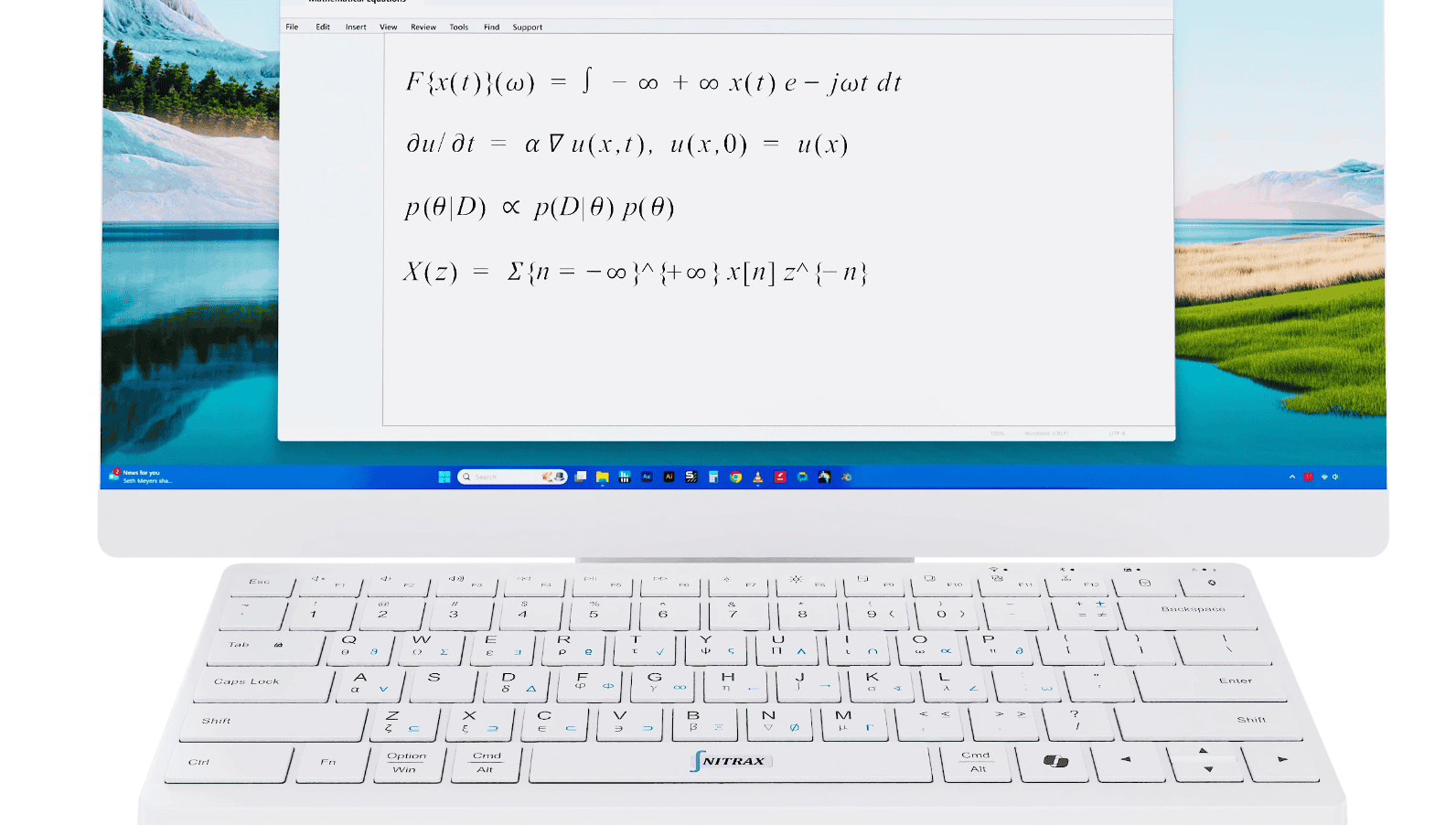
Nitrax Mathematical Keyboard is a compact physical computer keyboard with letters and mathematical, Greek and scientific symbols printed directly on its keys. After setup, key combinations access its blue and gray printed symbols.
Turn linear input into a formatted Word equation
For a stacked fraction, power or subscript, create a Word equation. In desktop Word for Windows, choose Insert → Equation or press Alt + =. The equation tab lets you choose UnicodeMath or LaTeX input. Match your typed notation to that setting.
| Input format | Type inside the equation |
|---|---|
| UnicodeMath | a/(b+c) |
| LaTeX | \frac{a}{b+c} |
Choose Convert → Professional to display:
For simple powers and indices, equation input such as x^2 and x_1 expresses x squared and x with subscript 1. Keep these inside an equation; typing them in an ordinary paragraph leaves literal text.
See the Microsoft linear equation guide for supported notation. Word provides the formatting; Nitrax Mathematical Keyboard provides symbol entry. It does not calculate answers or replace LaTeX. Symbol appearance and support can vary with your Word version and font.
Put symbols in the explanation around your equation
The measured area is 25 cm². The square has side length √25 = 5 cm.
A report needs readable explanations as well as formulas. For a square-root symbol in a sentence, click in the paragraph and enter the character, then continue typing. Use Word formatting for the superscript in cm².
Enter printed symbols while you write
Complete the Windows setup first, then keep the Nitrax Mathematical Keyboard app running with Math Mode on, enabling the printed math-symbol combinations. Click in your Word document and use the left-side modifiers:
| Printed layer | Key combination | Character |
|---|---|---|
| Blue | Left Ctrl + Left Alt + T | √ |
| Gray | Left Ctrl + Left Alt + Shift + J | ∫ |
Release the keys to continue ordinary typing. Mac users should follow the separate macOS setup, which requires macOS 15 or later and Karabiner-Elements.
Keep math symbols beside the words you write
If your Word documents regularly mix explanations and mathematical symbols, Nitrax Mathematical Keyboard puts the printed characters on physical keys. Use it for everyday symbol entry and keep Word’s equation tools for structured formulas.
Buy nowPublished by the maker of Nitrax Mathematical Keyboard.