How to Insert Math Symbols Faster in Everyday Text Editors
In Word, Notepad, Google Docs, OneNote, and other writing apps, math symbols are usually inserted through menus, equation tools, or copy/paste. That works, but it is still a menu-driven workflow.
Document and note apps can insert mathematical symbols, but the common path usually means opening a menu, searching, copying, or switching into a special equation mode.
That is acceptable for occasional insertion. It becomes friction when you need many symbols while drafting notes, worksheets, or technical documents.
Why menu-based insertion feels slower than typing
You leave the sentence, open the menu, find the symbol, and return to the document.
Even keyboard-code options like Unicode or Alt+numeric sequences still depend on remembering the right code.
- M
Menu stepsInsert > Symbol adds clicks.
- E
Equation modeUseful, but not the fastest for casual drafting.
- K
Code memoryUnicode and Alt-based input still need lookup.
Why a physical math keyboard works better for repeated symbols
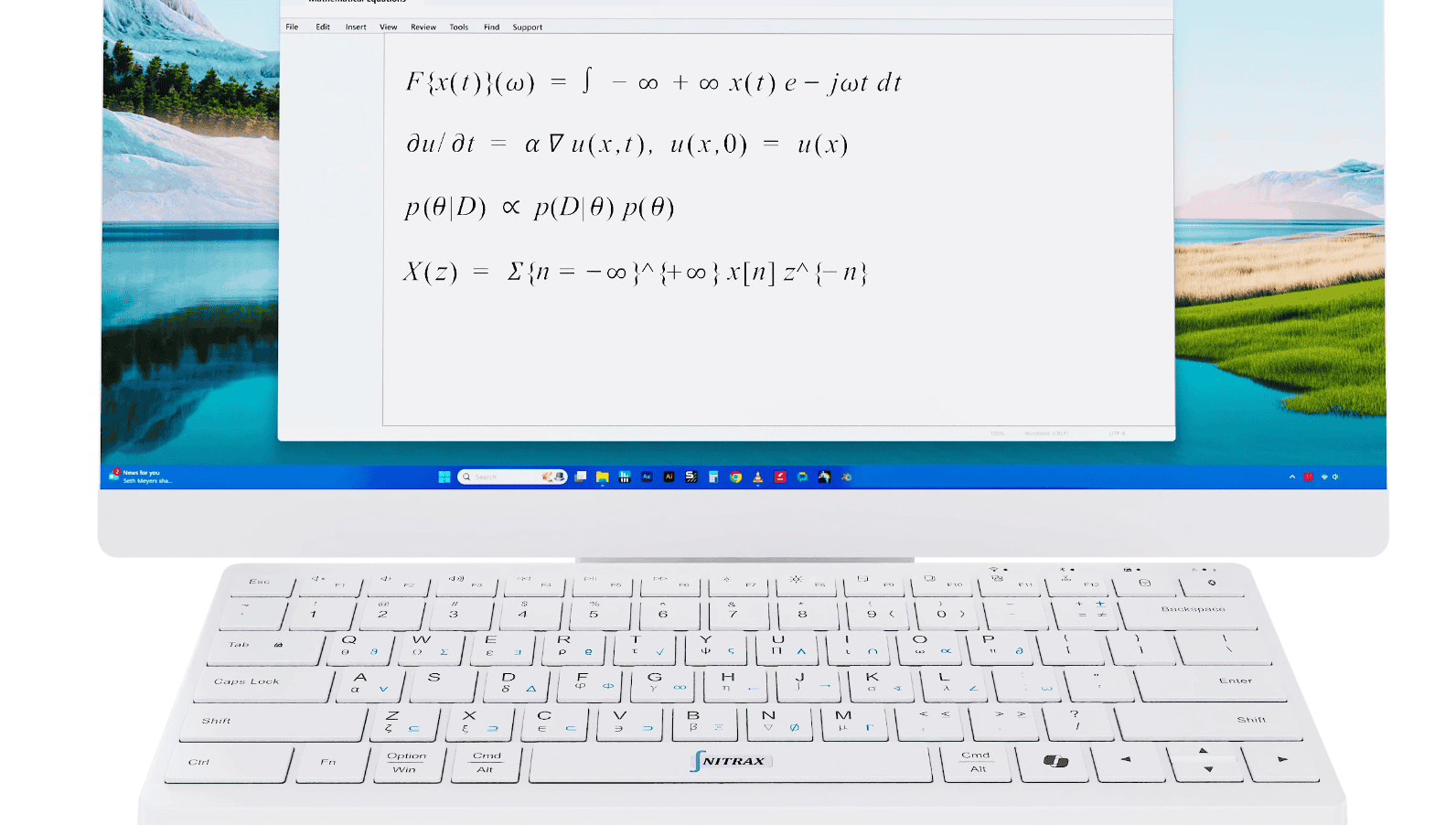
Nitrax Mathematical Keyboard keeps the math symbols visible on the keys, so you can stay inside your editor and keep typing.
That is a better everyday workflow when you are not trying to typeset a paper, only write math quickly and clearly.
A fair comparison
| Use case | Menu or copy/paste insertion | Nitrax Mathematical Keyboard |
|---|---|---|
| Insert > Symbol | Works, but slow. | Not needed. |
| Equation tools | Good for structure. | Not the fastest path. |
| Keyboard lookup | Often required. | Visible on the keys. |
| Best role | Occasional insertion. | Repeated symbol writing. |