How to Use Nitrax Mathematical Keyboard with OneNote
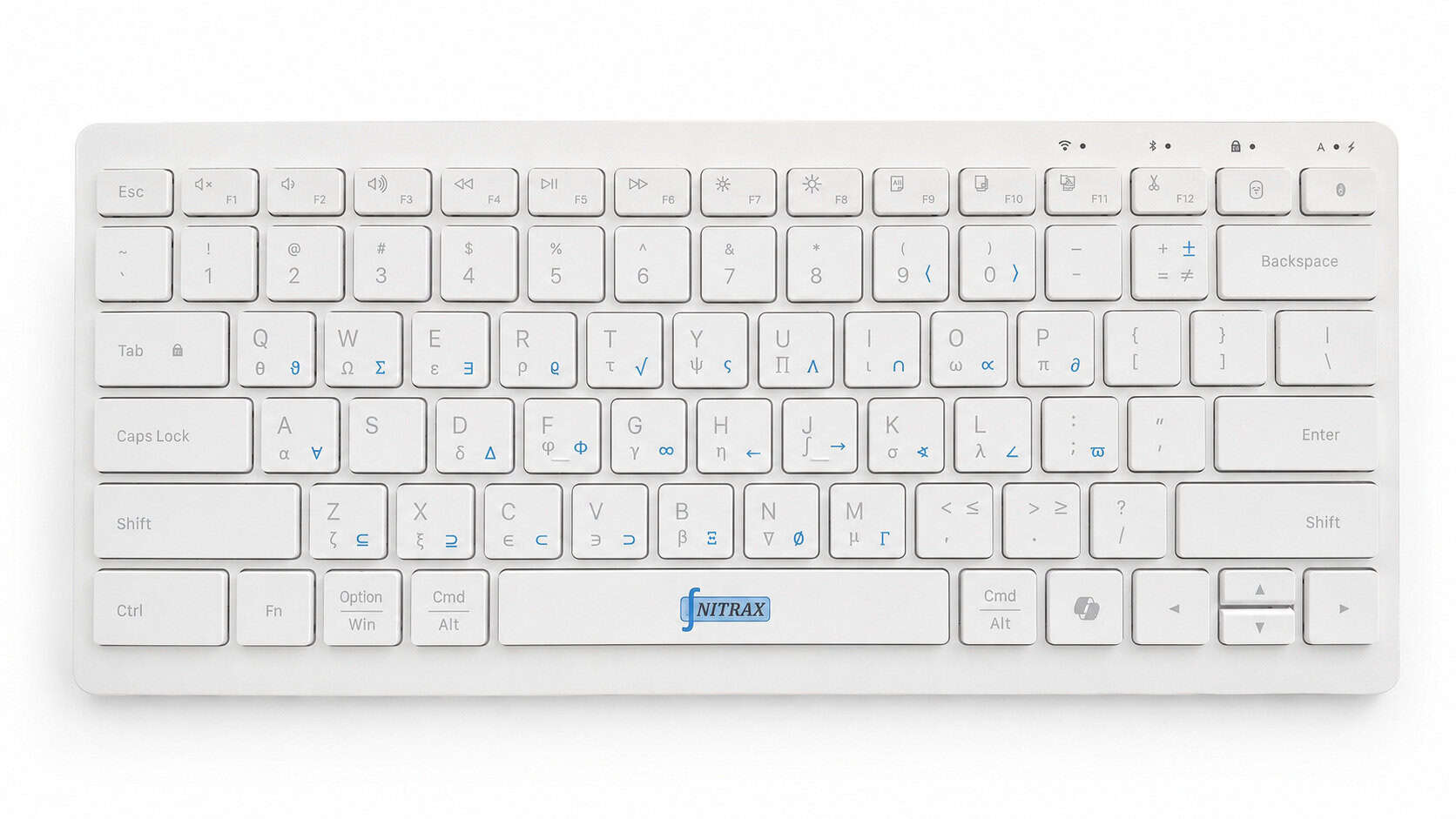
Open a OneNote page, write a heading such as Angle comparison, then add θ and π within your explanation. Nitrax Mathematical Keyboard is a compact physical computer keyboard with mathematical, Greek and scientific symbols printed directly on its keys. Key combinations access the blue and gray printed symbols, so you can type notation alongside your words.
Start with a note, not an equation box
- Follow the Nitrax setup guide for Windows or Mac and turn on Math Mode, the companion app setting that enables the printed math-symbol combinations.
- Open a OneNote page and click where you want to write.
- Type your words, then use the key combination for the symbol printed on the key. Continue the sentence in the same text area.
Illustrative notebook text
Angle comparison
Let θ be the angle. If θ ≤ π, compare it with the half-turn reference.
On Windows, use Left Ctrl + Left Alt + key for the blue symbols; add Shift for the gray symbols. Symbol display depends on the app and font.
Let OneNote calculate a simple expression
In the Windows desktop versions listed by Microsoft, including OneNote for Microsoft 365 and OneNote 2024, type the expression and an equals sign without spaces, then press Spacebar.
Type 12*3=
Press Spacebar
Result in the note 12*3=36
Here, * means multiplication. The × character is useful notation, but do not assume it behaves like * in the calculation parser. OneNote performs the calculation; Nitrax Math Keyboard enters the characters. See Microsoft’s supported operators and functions.
Choose the tool for the job
| Your note needs | Use |
|---|---|
| Greek letters and symbols within sentences | Nitrax printed-layer key combinations |
| Stacked fractions or structured equations | OneNote’s equation tools |
| Supported equation solving and solution steps | OneNote Math Assistant, where available |
In OneNote for Microsoft 365 or OneNote 2024 on Windows, choose Insert > Equation or press Alt + = to start a structured equation, then use the equation structures for fractions. See the Microsoft equation guide.
On Mac, Insert > Equation creates an equation area for fractions and other structures. Microsoft describes this as formatting, not calculation. For more complex Mac structures, its equation guide recommends creating the equation in Word and copying it into your notes.
Math Assistant works with typed or handwritten math and can show solution steps for supported problems. Microsoft currently requires a Microsoft 365 Enterprise or Education subscription. Its Math Assistant guide explains selecting the equation with Lasso Select, then choosing Draw > Math.
Prefer linked notes? See math writing in Obsidian.
Keep symbols within reach while you take notes
For pages that alternate between explanation and notation, Nitrax Mathematical Keyboard puts the symbols on physical keys. Use it for everyday symbol entry, alongside OneNote’s formatting and calculation tools.
Buy nowPublished by the maker of Nitrax Mathematical Keyboard.