How to Use Nitrax Mathematical Keyboard with Google Docs
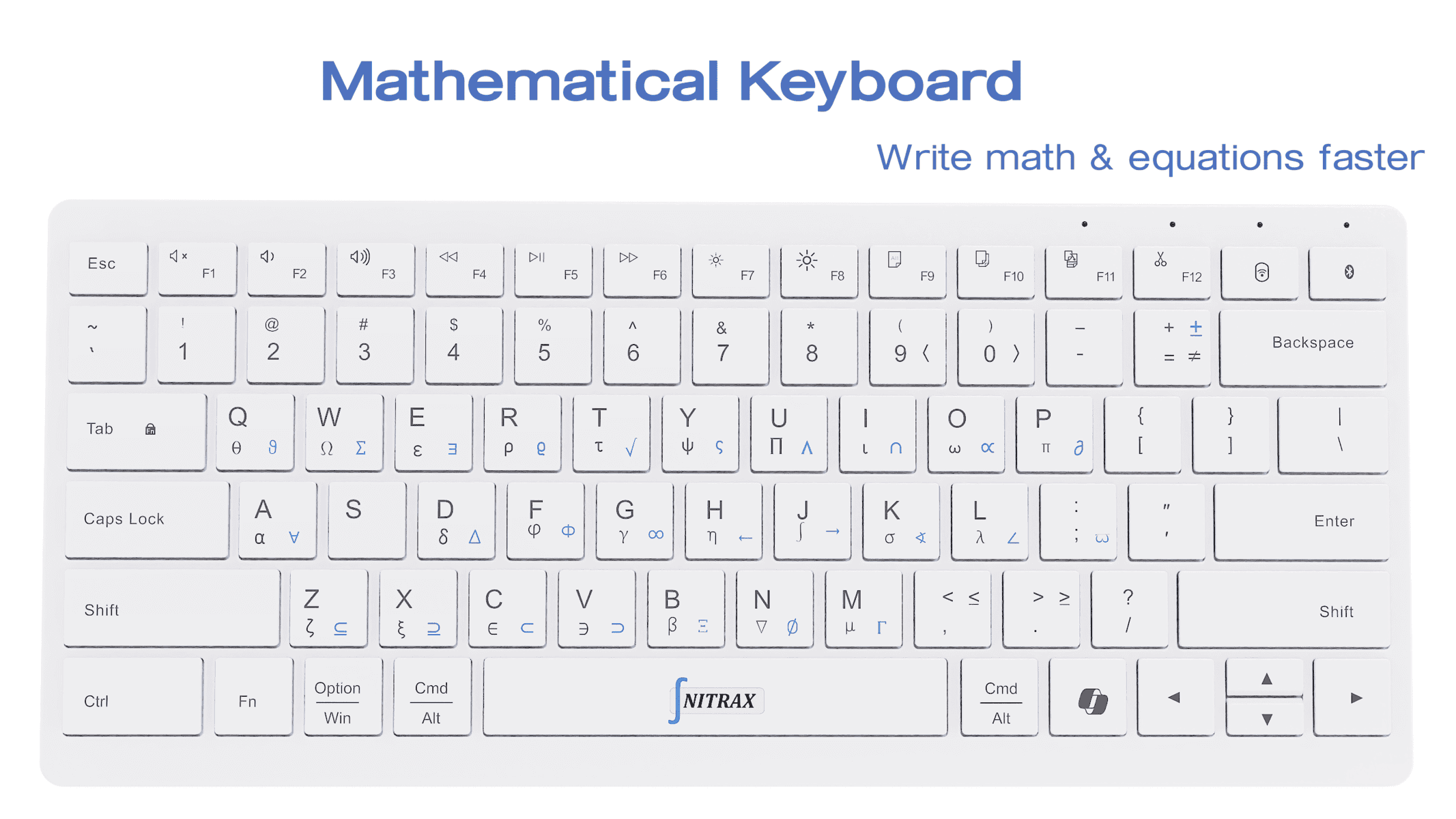
Writing ‘find √9’ in a Google Doc should not interrupt the sentence around it. Nitrax Mathematical Keyboard is a compact physical keyboard with letters and mathematical, Greek and scientific symbols printed on its keys.
After setup, key combinations type the symbols from its blue and gray printed layers into your document. Use it for notes, lesson explanations and exercises where words and notation belong together.
Build a short explanation in your Google Doc
Illustrative document text
Practice: square roots
Find √9 and explain your answer.
The principal square root is 3 because 3 × 3 = 9.
- Click inside an editable Google Doc and type Find .
- Enter √ using the keyboard’s printed symbol layer.
- Release the modifier keys, then type 9 and explain your answer.
Windows example: Left Ctrl + Left Alt + T → √
The symbol sits within the sentence as text. You can place the cursor beside it and revise the explanation. For Greek letters or other symbols, find the printed mark on the keyboard and use its layer combination.
Before trying this, complete the Windows setup or macOS setup and enable Math Mode, the companion app setting that activates the printed symbols.
Use an equation box when layout matters
| What you need | Where to write it |
|---|---|
| A symbol inside a sentence, such as ‘find √9’ | Ordinary document text |
| A numerator above a denominator or a structured mathematical expression | Google Docs’ equation editor |
A typed √ is a character. It does not automatically draw a radical bar across the expression that follows.
To build an equation, choose Insert → Symbols → Equation, then use the equation toolbar. Google Docs also accepts symbol commands inside an equation box:
\alpha + Space → α
Google Docs equation-box method
This command belongs in the equation box; the hardware method above is for entering printed symbols into your writing. Google’s equation guide explains its menus and commands. Nitrax Mathematical Keyboard does not calculate answers or arrange complete equations.
Let someone review the reasoning
Commenter: discuss the explanation.
Editor: revise the document text.
Use Google Docs’ sharing roles to choose how someone can respond to your worked example. The keyboard enters the notation; Google Docs provides the shared document.
If a symbol is missing, check Math Mode and your setup guide. Symbol appearance and input behavior can vary with the font, browser and application.
Write your next math explanation from the keys
If your Google Docs regularly mix sentences and mathematical symbols, Nitrax Mathematical Keyboard puts printed notation beside the letters you already use. Choose a physical keyboard for everyday symbol entry, and keep Google Docs’ equation tools for layout.
Buy nowPublished by the maker of Nitrax Mathematical Keyboard.