Type math symbols in browser text fields with the Nitrax Chrome extension
The Nitrax Math Keyboard Chrome extension brings the printed blue and gray symbol layers into standard editable fields on the web. It is built for people who use the physical Nitrax Mathematical Keyboard and want the same math-symbol typing workflow inside Chrome.
The official Nitrax Mathematical Keyboard extension is now available on the Chrome Web Store.
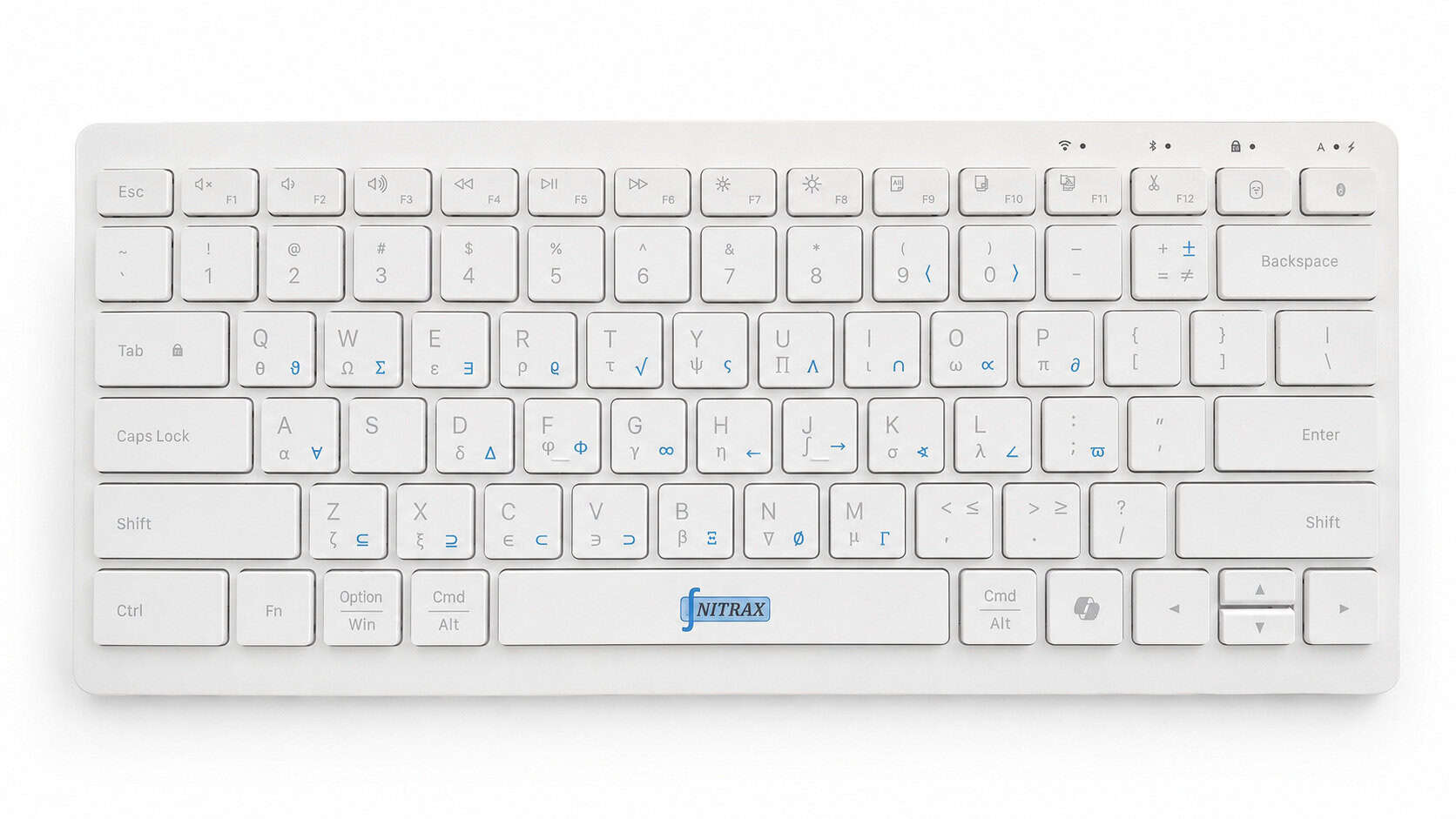
A compact physical keyboard with printed symbols on the keys. The extension follows the same blue and gray layer idea in Chrome.
What the extension is for
The extension is for everyday browser writing when you need a symbol now: a Greek letter in a search box, an integral sign in a form, an arrow in a note, or a scientific symbol in a web editor that accepts normal text input.
Standard fields
Use Nitrax key combinations in normal input fields, textareas, and contenteditable writing areas.
Printed layers
The extension uses the same blue and gray layer mapping as the physical Nitrax Mathematical Keyboard layout.
Local control
The popup gives you a clear Enabled or Disabled switch, stored locally in your Chrome profile.
How it works
When the extension is enabled, it listens for exact Nitrax key combinations inside editable areas. If the active cursor is in a supported field and the key combination matches a printed symbol layer, the extension inserts the corresponding Unicode symbol at the cursor position.
For example, on Windows, Ctrl + Alt + Shift + A inserts α, and Ctrl + Alt + Shift + J inserts ∫. Blue layer combinations use Ctrl + Alt.
CtrlAltShiftJ∫
- Inserts at the active cursor position.
- Replaces selected text with the chosen symbol.
- Works with Undo in standard editable fields.
- Does not use the clipboard for symbol insertion.
- Does not collect typed text or browsing history.
What works well
Search boxes and normal web forms
Use symbols in standard browser fields, including search boxes and form fields that accept regular text.
Textarea editors
Works in standard multiline text areas, such as comments, support forms, and simple web editors.
Contenteditable writing areas
Works in many browser editors that expose a normal editable text area to Chrome extensions.
Important compatibility notes
The extension is intentionally honest about where Chrome allows text insertion. Some applications do not expose a normal editable field to browser extensions, even when they look like a text editor on screen.
Chrome address bar
Chrome extensions cannot type into or control the browser address bar. For the address bar, use the Nitrax desktop software.
Google Docs
Google Docs uses a canvas-based editor with a hidden text-event layer. The Chrome extension cannot reliably insert symbols into the document body. The desktop software remains the recommended path for Google Docs.
Code-style web editors
Some editors, including advanced LaTeX or code editors, intercept keyboard input in their own way. Standard fields are the strongest fit for the extension.
Extension or desktop software?
Use the Chrome extension when writing inside supported browser fields
The extension is convenient for web search boxes, forms, simple web editors, and content areas where Chrome extensions can insert text directly.
Use the desktop software for system-wide typing
The Windows companion app sends symbol input at the operating-system level. It is the better choice for desktop apps, Google Docs document bodies, the Chrome address bar, and applications that do not expose a normal editable web field.
Setup flow
Install the Chrome extension
Install the official extension from the Chrome Web Store, then pin it if you want quick access to the popup.
Open the popup and check the state
The switch clearly shows Enabled or Disabled. The setting is saved locally in Chrome, so it stays the same after you close the popup.
Refresh the page you want to type in
After installing or reloading the extension, refresh any already-open web page so the content script can load into that page.
Place the cursor in a supported field
Click into a normal input, textarea, or contenteditable field, then use the Nitrax blue or gray layer key combination for the symbol printed on the keyboard.
Privacy and permissions
The extension is deliberately small. It stores only whether the extension is Enabled or Disabled, using Chrome local storage. It does not use synced Chrome storage, does not request clipboard permissions, does not collect analytics, and does not send typed text to a server.
The extension needs access to web pages so it can detect when the active target is editable and insert symbols only when an exact Nitrax key combination is used.
Read the full Nitrax Mathematical Keyboard Extension Privacy Policy.
FAQ
Is this a virtual keyboard?
No. Nitrax Mathematical Keyboard is a compact physical keyboard with symbols printed directly on the keys. The Chrome extension is a companion tool for using those printed layers in supported Chrome fields.
Does the extension replace the desktop software?
No. The extension is useful inside Chrome fields that allow extension text insertion. The desktop software remains important for system-wide typing and applications that Chrome extensions cannot control.
Does it work in Google Docs?
Not reliably in the document body. Google Docs uses a custom canvas editor, so the desktop software is the recommended way to type Nitrax symbols there.
Can it type in the Chrome address bar?
No. Chrome does not allow extensions to type into the address bar. Use the desktop software for that workflow.
What happens when the extension is Disabled?
The Chrome extension stops intercepting Nitrax key combinations. If the desktop Nitrax software is also running, it has its own Math Mode and may still insert symbols independently.
Built for the same reason as the keyboard
Copying a symbol once is fine. Doing it repeatedly while writing notes, answers, slides, or technical material is where the interruption becomes obvious. The Nitrax Math Keyboard Chrome extension gives Nitrax users a browser companion for the same printed-layer workflow.