How to use the Nitrax Math Keyboard for MacOs
Download Math Software
https://mathematicalkeyboard.com/wp-content/uploads/2026/01/instruction-math-keyboard-software-v2.mp4
Quick Start (Windows) · First symbol in ~60 seconds
Important: Math shortcuts require the Windows app
No driver · No installer · No admin rights
Unlock Math Mode in 60 seconds
Your Nitrax Math Keyboard works as a normal keyboard right away.
To unlock the printed math symbols (blue/gray layers), you must run the lightweight Windows companion app.
Once it’s on, you can type math instantly in Word, Google Docs, Notepad, and more.
1
Power ON
Switch on the keyboard.
2
Connect
2.4G dongle or Bluetooth.
3
Download + run
NitraxMathKeyboard.exe.
4
Math Mode ON
Tray icon near the clock.
5
Type √
Ctrl + Alt + T → √
Software (Windows App)
-
1
Download the app
Get the latest version (single file). No installer required.
Download app
Single file · No installer · No admin rights -
2
Run the app (NitraxMathKeyboard.exe)
Double-click to launch. It runs quietly in the background.
-
3
If SmartScreen appears: “More info” → “Run anyway”
Common for new lightweight utilities that aren’t code-signed yet.
-
4
Enable Math Mode using the tray icon (near the clock)
Double-click the tray icon to toggle Math Mode ON/OFF.
Keyboard shortcut: Ctrl + Alt + Shift + F12.
Tray icon: what to click
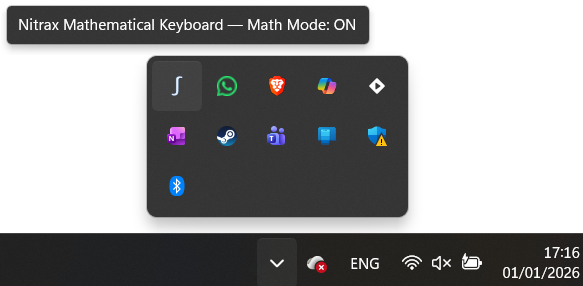
You should see the Nitrax icon in the system tray (bottom-right on Windows).
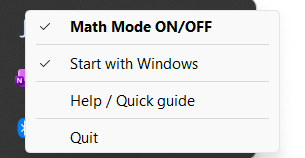
Right-click the tray icon to open the menu:
Math Mode ON/OFF, Start with Windows, Help / Quick Guide, and Quit.
Menu explained:
• Math Mode ON/OFF adds the printed math layers while keeping normal typing unchanged.
• Start with Windows launches the app automatically at startup — so you never have to think about it again.
• Help / Quick Guide opens this page.
• Quit closes the app completely (the tray icon disappears). To use math shortcuts again, launch the app.
Runs locally
No internet
No telemetry
No clipboard
Set it once: after you enable Start with Windows, the app will be ready every time you turn on your PC.
First success (do this now)
Open any app where you can type (Word, Google Docs, Notepad…). Then try:
✓
Ctrl + Alt + T → √
If you see √ appear, you’re done — everything is working.
+
Ctrl + Alt + Shift + J → ∫
Gray layer = one extra key (Shift). Same idea.
Shortcuts (always the same)
B
Ctrl + Alt → Blue symbols
Use the symbols printed in blue on the keys.
G
Ctrl + Alt + Shift → Gray symbols
Use the symbols printed in gray on the keys.
Pro tip: keep Ctrl + Alt held down to type several symbols in a row.
Hardware (Keyboard)
Power & sleep
Turn the keyboard ON using the physical switch.
It automatically enters sleep after about 10 minutes of inactivity.
Math Mode is in the Windows app: double-click the tray icon (or Ctrl + Alt + Shift + F12) to toggle.
When Math Mode is OFF, the keyboard behaves like a normal keyboard.
Keyboard OS mode (important)
Make sure the keyboard is set to the correct OS mode so the keys map properly.
⊞
Fn + Q → Windows mode
Use this for the Windows app and the math shortcut layers.
⌘
Fn + W → Mac mode
Use this if you want the keyboard to behave normally on macOS.
macOS
The keyboard works as a normal keyboard on macOS (switch to Mac mode with Fn + W).
The Windows math shortcut layers are not yet available on macOS — we’re working on it.
Connectivity
Choose a connection mode
-
A
2.4G (USB dongle)
Plug the dongle into your computer, then press the 2.4G button on the keyboard.
-
B
Bluetooth
Press the Bluetooth button, then pair from your computer’s Bluetooth settings.
-
C
Check the LEDs
The LEDs indicate which mode is active (2.4G vs Bluetooth).
Good to know: once you’ve paired Bluetooth or set 2.4G, you usually don’t need to redo it.
Your keyboard remembers the last mode, and reconnects when you turn it on.
Buttons & LEDs (quick)
This short GIF-style loop shows where the 2.4G / Bluetooth buttons are, and which LEDs light up for each mode.
If you can’t type: first check Power ON, then which mode LED is on.
Where the dongle is stored
The 2.4G USB receiver is stored inside the keyboard for travel. Take it out, plug it in, and you’re ready.
After use, slide the dongle back into its slot so it doesn’t get lost.
Quick checklist
1
Keyboard ON?
Make sure the physical power switch is ON.
2
Connected? (2.4G or Bluetooth)
If you use the dongle, make sure it’s plugged into your PC.
3
Windows mode? (Fn + Q)
Required for the Windows shortcut layers.
4
App running + Math Mode ON?
Tray icon visible · double-click to toggle Math Mode.
Need help?
Quick Guide
Troubleshooting
Contact
Full documentation
Still stuck — or have a suggestion to improve this setup? We’d love to help. Click Contact.