Nitrax Math Keyboard — Full Documentation
This page is the complete reference for setup, daily use, troubleshooting, compatibility, and trust details. If you already tried the Quick Start and still have a question, this page is designed to answer it fast.
Important concept: the keyboard works like a normal keyboard immediately. To type the printed math symbols (blue/gray layers), you must run the lightweight Windows companion app.
Getting Started (Windows)
The Windows companion app is a single file that runs in the background. There is no installer, no admin rights required, and there is nothing to uninstall: if you don’t want it running, just quit it (and optionally delete the file).
1) Download & run
-
1
Download the Windows app
The download button always points to the latest release on GitHub, so you get the newest stable version automatically. -
2
Run it (double-click)
It starts immediately (no setup wizard). You’ll find it in the system tray near the clock. -
3
Turn Math Mode ON
Double-click the tray icon to toggle ON/OFF. Hotkey: Ctrl + Alt + Shift + F12.
2) SmartScreen (blue warning screen)
On first run, Windows may show a SmartScreen warning. This typically happens for small independent utilities that are not code-signed yet.
3) Tray & Math Mode (what to click)
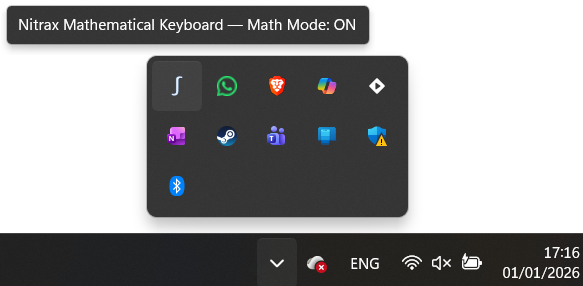
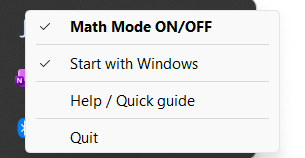
• Double-click the tray icon = toggle Math Mode ON/OFF
• Right-click = menu (Math Mode, Start with Windows, Help, Quit)
• Hotkeys: toggle Math Mode Ctrl + Alt + Shift + F12 · quit app Ctrl + Alt + Shift + F11
4) Updates
Updating is simple: quit the app, then download again using the same button on this page and run the new file. There’s no installer and no uninstaller involved.
Typing math
The keyboard uses a consistent two-layer system. You can keep Ctrl + Alt held down and type multiple symbols in a row.
Blue / Gray layers
-
B
Blue symbols = Ctrl + Alt + key
Example: Ctrl + Alt + T → √ -
G
Gray symbols = Ctrl + Alt + Shift + key
Example: Ctrl + Alt + Shift + J → ∫
• Keep Ctrl + Alt pressed and “tap-tap-tap” symbols in sequence.
• If a symbol doesn’t appear in a specific app, try the same shortcut in Notepad to confirm your setup (then see Troubleshooting).
• If a specific app reserves a shortcut, you may see that app action instead of a symbol (see Troubleshooting).
Hardware
Power, sleep, charging
Turn the keyboard ON using the physical switch. It enters auto-sleep after about 10 minutes of inactivity. Charge via USB-C. Typical full charge is around ~2 hours, and typical usage is around ~70 hours (battery 300 mAh).
Dongle storage (travel-safe)
The 2.4G USB receiver stores in a recessed slot under the keyboard so it’s harder to lose in a backpack.
LEDs, buttons, AI key
The LEDs indicate connection mode and status at a glance (2.4G / Bluetooth / FN-Lock / Caps or battery/charging depending on state).
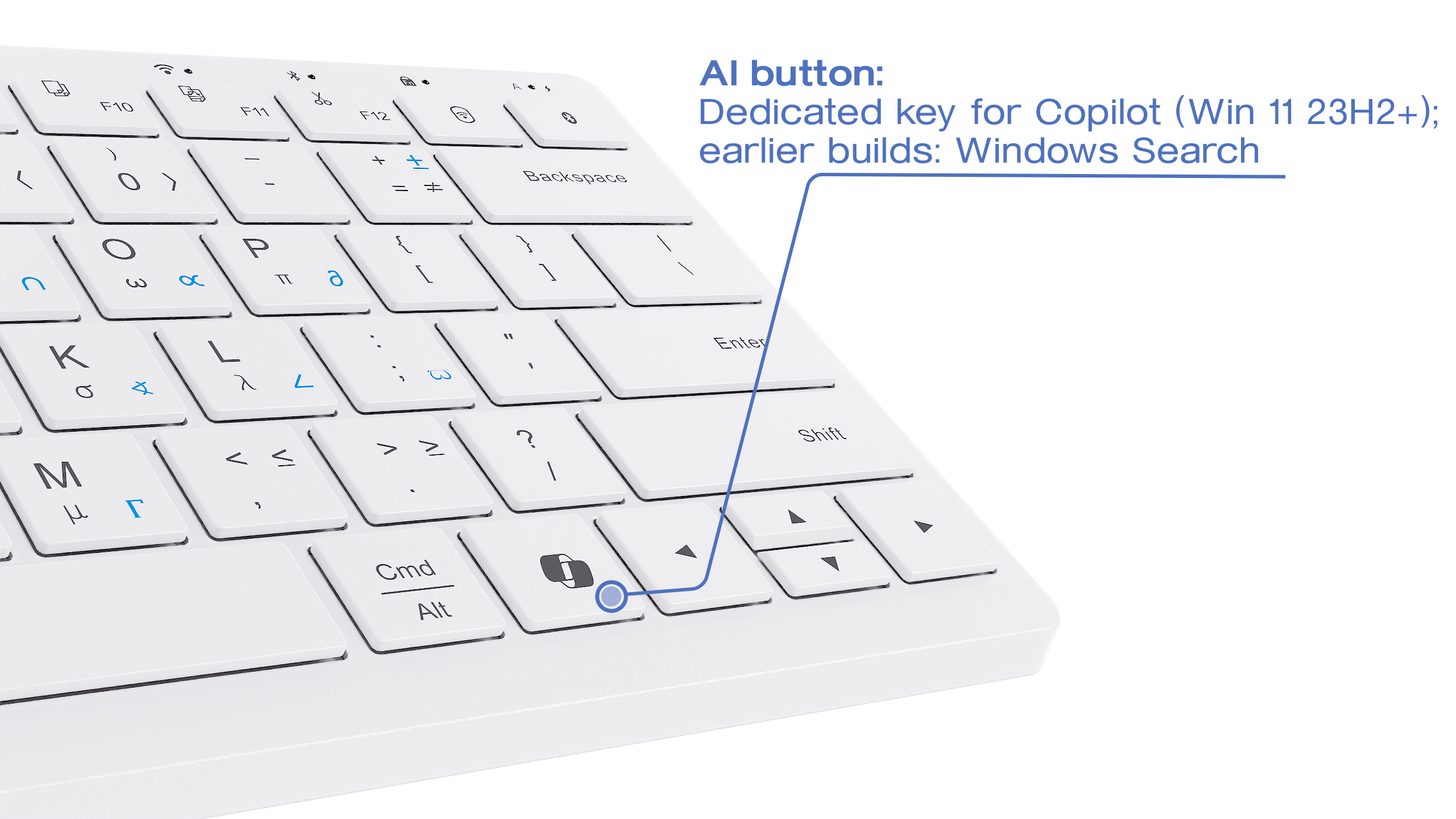
If the AI key doesn’t behave as expected, check your Keyboard OS mode (Windows mode recommended).
Connectivity
The keyboard supports one connection at a time: either 2.4G (USB dongle) or Bluetooth. It typically remembers the last mode used and reconnects when powered on.
2.4G (USB dongle)
-
1
Plug the USB receiver into your computer
Use a direct USB port if possible (some hubs reduce reliability). -
2
Power ON the keyboard
Then press the 2.4G mode button to select 2.4G mode. -
3
If it doesn’t connect: re-enter pairing
Press and hold the 2.4G button for about 3 seconds until the 2.4G indicator flashes rapidly, then it should connect.
Bluetooth pairing (Windows)
-
1
Select Bluetooth mode
Press the Bluetooth mode button once. -
2
Enter pairing
Press and hold the Bluetooth button for about 3 seconds until the Bluetooth indicator flashes rapidly. -
3
Pair from Windows settings
Open Bluetooth settings → Add device → select the keyboard when it appears. The device name may show as IOP 582/583/584 depending on batch.
Keyboard OS mode
The keyboard has an OS mode switch. This mainly affects the Windows key behavior and the AI key. (The math shortcut layers are handled by the Windows app + Math Mode.)
-
⊞
Fn + Q → Windows mode
Recommended on Windows for correct Windows key behavior and the AI key. -
⌘
Fn + W → Mac mode
Use this if you want the keyboard to behave normally on macOS.
Best practices
These tips improve the experience in math-heavy workflows (especially in Microsoft Word).
Word: use equation mode when possible
When you’re writing math in Word, you’ll usually get the best results by typing inside a Word equation.
-
1
Open an equation
Menu: Insert → Equation, or use the shortcut Alt + =.
Word: create your own shortcuts with macros
If you often insert the same structures, Word macros can save time: record a sequence once, then trigger it with your own shortcut.
-
1
Record a macro
View → Macros → Record Macro. Store it in “All Documents (Normal.dotm)” if you want it everywhere. -
2
Assign a keyboard shortcut
In the Record Macro dialog, click “Keyboard” and press the shortcut you want. Then perform the actions you want recorded and stop recording. -
3
Use Ctrl + Alt + S for your own favorite macro
We intentionally keep the S key shortcut free so you can map it to what you use most. A common example is an integral or summation workflow you insert repeatedly.
Compatibility
The app inserts standard Unicode symbols, so compatibility is mainly about whether the target app accepts normal text input and whether it reserves a conflicting shortcut.
Apps matrix
| App / context | Status | Notes |
|---|---|---|
| Microsoft Word | Tested | Works well. For best results, type math inside Word equations (Alt + =). |
| LibreOffice Writer | Tested | Works well. |
| Google Docs (browser) | Tested | Works well. If a shortcut triggers a browser feature, see Troubleshooting. |
| Notepad | Tested | Great for confirming your setup quickly. |
| Notepad++ | Tested | Works well. |
| OneNote | Tested | Works well. |
| Other editors / apps | Usually works | If the app reserves a shortcut, you may see that app action instead of a symbol. In that case, try another editor. |
Keyboard layouts (QWERTY / AZERTY / QWERTZ)
The physical legends are designed around a QWERTY-like layout. On systems using other layouts, the shortcuts can still work, but the physical position may feel different from the printed legend.
IT / Enterprise notes
This section is for users in managed environments (company laptops, university IT policies, restricted accounts).
What the app is (and is not)
-
✓
Portable user-level app
No installer, no system driver, no service. You can run it from any folder you have access to. -
✓
No admin rights required
Runs as a regular user process. -
✓
No network access and no telemetry
Runs locally. No data collection. No internet communication. -
✓
Open-source
The source code is available on GitHub and can be reviewed easily (see Trust & transparency).
Troubleshooting
Most issues come from one of these: app not running, Math Mode OFF, or a shortcut conflict inside a specific application.
| Symptom | Quick checks | Fix |
|---|---|---|
| Nothing happens when I press symbol shortcuts |
Is the app running (tray icon)? Is Math Mode ON? |
Start the app → double-click tray icon to enable Math Mode. Test in Notepad to confirm. |
| Windows key doesn’t open the Start menu (or AI key behavior is odd) | OS mode may be set to Mac mode. | Switch to Windows mode: Fn + Q. (Mac mode is Fn + W.) |
| Tray icon is missing | It may be hidden in the tray overflow. | Click the ^ arrow near the clock to show hidden icons, then find the Nitrax icon. |
| SmartScreen warning appears | Common for new, lightweight tools. | Click More info → Run anyway. |
| In a specific editor, a shortcut triggers something else | Some apps reserve global or high-priority shortcuts. | Try another editor/app. If the app’s shortcut wins priority, it may prevent symbol insertion there. |
| My usual shortcut is now “blocked” by the math shortcuts | This can happen in rare workflows. | Temporarily turn Math Mode OFF (tray double-click or Ctrl + Alt + Shift + F12), do your action, then turn it back ON. We intentionally choose shortcuts that are uncommon to minimize conflicts. |
| Bluetooth won’t pair / reconnect | Was it paired before? Is pairing mode active (flashing)? | Remove the device in Windows Bluetooth settings → hold Bluetooth button ~3 seconds to re-enter pairing → Add device again. |
| 2.4G doesn’t connect | Is the receiver plugged in? Is 2.4G mode selected? | Plug receiver → select 2.4G mode → if needed, hold 2.4G button ~3 seconds (fast flashing) to re-pair. |
Trust & transparency
The Windows companion app is built with AutoHotkey (AHK), a widely used open-source automation framework on Windows. We chose it because it’s reliable for low-level keyboard handling and widely understood by the Windows community.
• Runs entirely locally on your machine
• No internet access and no telemetry
• Inserts symbols directly (does not use the clipboard)
If you want extra reassurance, the project is open-source and the source code is available on GitHub — you can review it easily.
FAQ
Does the keyboard work without the Windows app?
Which apps does it work in?
Does it require admin rights?
Does it use the clipboard?
Does it collect data or connect to the internet?
How do I disable shortcuts temporarily?
How do I update?
Can I customize shortcuts for my workflow?
Is macOS supported?
Glossary
| Term | Meaning |
|---|---|
| Math Mode | When ON, the app listens for the keyboard’s math shortcut layers and inserts symbols. When OFF, the keyboard behaves normally. |
| System tray | The icons area near the Windows clock (bottom-right). The app lives there while running. |
| SmartScreen | A Windows warning screen that can appear for new/unsigned apps on first run. |
| Unicode symbol | Standard text character (√, ∫, Σ, …) inserted directly into your document without the clipboard. |
| 2.4G | Wireless mode using the included USB receiver (low latency, recommended). |
| Bluetooth pairing | The process of connecting the keyboard to your computer via Bluetooth settings. |
| OS mode (Fn + Q / Fn + W) | Keyboard-level mode that mainly affects the Windows key behavior and the AI key. |
Support & contact
Still stuck — or want to request a missing symbol / suggest a better layout for v2? Send us a message and include: your Windows version, the app you’re typing in, and what you expected vs what happened.