How to Use the Nitrax Math Keyboard
Nitrax Math Keyboard Software
The Nitrax Math Keyboard Software is the official Windows companion application for the Nitrax Mathematical Keyboard. It enables instant mathematical symbol input using the symbols printed on the keys.
About
The Nitrax Math Keyboard software transforms the way you type mathematics on your computer.
Instead of navigating symbol menus, memorizing complex shortcuts, or copying and pasting symbols, you gain direct access to mathematical notation using simple and consistent key combinations.
The software is built for anyone who regularly types mathematics:
students
researchers
engineers
scientists
educators
It allows you to stay focused on your ideas while writing equations naturally, directly inside the applications you already use.
How it works
Once launched, the software runs silently in the system tray and listens for specific key combinations coming from the Nitrax keyboard.
When a valid combination is detected:
the corresponding mathematical symbol is inserted
the symbol is inserted directly as Unicode
the clipboard is never used
This makes the input fast, clean, and compatible with a wide range of software.
Technology & trust
The Nitrax Math Keyboard software is built using AutoHotkey (AHK).
AutoHotkey is a widely used, open-source automation framework for Windows, trusted by millions of users worldwide for:
keyboard automation
productivity tools
accessibility solutions
The Nitrax software:
is open-source
contains no telemetry
has no network access
runs entirely locally on your machine
Windows security notice (SmartScreen)
On first launch, Windows may display a blue security warning screen.
This is expected and normal.
It happens because:
the application is new and not yet widely distributed
it is not digitally code-signed
it is a small independent utility built with AutoHotkey
To proceed:
Click More info
Click Run anyway
The software is safe to run and does not modify system files.
Keyboard Features
55 mathematical symbols mapped directly to the keyboard
Two-layer system:
Ctrl + Alt for blue symbols
Ctrl + Alt + Shift for gray symbols
Direct Unicode insertion (no clipboard usage)
Global behavior across applications
Lightweight, silent background operation
Tray-based interface with Math Mode ON / OFF
Optional automatic start with Windows
Transform your mathematical writing today! Need a Nitrax keyboard? Get yours here.
Features (Software)
- 55 Mathematical Symbols — Greek letters, operators, and special characters
- Two‑Layer System — Ctrl + Alt for blue symbols, Ctrl + Alt + Shift for gray symbols
- Instant Access — no more interrupting your workflow to find symbols
- Professional Layout — optimized for academic and research work
- Plug & Play — simple setup, immediate productivity boost
- Conflict‑Aware Mapping — Ctrl + Alt + S is intentionally unassigned to avoid HP System Information conflicts on some PCs
Installation
Get the software to unlock your math keyboard’s full potential
This section explains how to install and run the Nitrax Math Keyboard software on Windows.
Prerequisites
(remplace complètement le texte actuel)
A computer running Windows 10 or Windows 11
A Nitrax Mathematical Keyboard (physical device)
The official Nitrax Math Keyboard software (
NitraxMathKeyboard.exe)
No administrator privileges are required.
There is no installation wizard and no system-level driver.
Steps
(remplace complètement la liste actuelle)
1. Download and run the software
Download the file
NitraxMathKeyboard.exefrom the official download pageDouble-click the file to run it
There is no installer and no setup process.
The application launches immediately.
2. Allow Windows security prompt (first launch)
On first launch, Windows may display a blue SmartScreen warning.
This is expected and safe.
Click More info
Click Run anyway
This happens because the software is new, lightweight, and not digitally signed yet.
It is built using AutoHotkey and runs entirely locally on your machine.
3. Locate the application in the system tray
Once launched, the application appears in the system tray (near the clock).
If you don’t see it, click the ^ arrow to show hidden tray icons
The app runs silently in the background
From the tray, you can:
Enable or disable Math Mode
Enable or disable Start with Windows
Quit the application at any time
4. Connect your keyboard
Connect your Nitrax Mathematical Keyboard using one of the two supported modes:
2.4 GHz wireless (USB dongle)
Bluetooth
Make sure to press the corresponding mode button on the keyboard (2.4G or Bluetooth).
The keyboard must be in the correct mode to communicate with your computer.
First-time connection – important note
On the top-right corner of the keyboard, there are two dedicated mode buttons:
2.4G (Wi-Fi icon)
Bluetooth
When using the keyboard for the first time, you must manually select the correct mode.
If the keyboard is powered ON but nothing happens, it is often because it is still set to the other mode.
Press the corresponding mode button once to switch.
This is a common source of confusion during first use.
5. Start typing mathematical symbols
Once the software is running and Math Mode is enabled:
Open any supported application (Word, Google Docs, Notepad, etc.)
Use the keyboard layers:
Ctrl + Alt + key → blue symbols
Ctrl + Alt + Shift + key → gray symbols
Mathematical symbols are inserted instantly, without menus or copy-paste.
Technology & trust
No drivers, no system modification
The Nitrax Math Keyboard software is not a driver.
It does not modify system files
It does not change keyboard layouts at the OS level
It does not install background services
It runs as a standard user-level application and can be closed or removed at any time.
Privacy and security
The software runs entirely locally, has no internet access, and does not collect or transmit any data.
Software updates
To update the Nitrax Math Keyboard software:
Download the latest version from the official GitHub releases page
Quit the currently running version from the system tray
Run the new executable file
No uninstallation is required.
Notes
The software can be safely closed or reopened at any time
You can enable Start with Windows from the tray menu for automatic launch
Updating the software simply requires downloading and running the latest version
Usage
This section explains how to use the Nitrax Mathematical Keyboard once the software is running.
The math input system is designed to be simple, consistent, and global, so you can type mathematical symbols naturally in your existing workflow.
Platform support
(remplace le paragraphe actuel)
The Nitrax Math Keyboard software is designed for Windows.
On Windows 10 and Windows 11, all mathematical symbol shortcuts (blue and gray layers) are fully supported.
On macOS, the keyboard works as a standard keyboard, but the Windows-style mathematical shortcuts are not available.
The software operates globally at the system level and works across most Windows applications that accept text input.
Basic Symbol Access (Windows)
(remplace entièrement le contenu actuel, mais garde la structure)
The Nitrax Mathematical Keyboard uses a two-layer system to access mathematical symbols efficiently.
Blue symbols
Hold Ctrl + Alt
Press the corresponding key
Inserts the blue symbol printed on the key
Gray symbols
Hold Ctrl + Alt + Shift
Press the corresponding key
Inserts the gray symbol printed on the key
You can keep Ctrl + Alt pressed and type multiple symbols in sequence for fast input.
How Math Mode works
Why Math Mode exists
Math Mode allows you to temporarily enable or disable mathematical input without closing the application.
This is useful when:
typing normal text
writing emails
using applications where math symbols are not needed
When Math Mode is OFF, the keyboard behaves exactly like a standard keyboard.
The Nitrax Math Keyboard software runs in the background and introduces a concept called Math Mode.
When Math Mode is ON, the software listens for math key combinations and inserts symbols.
When Math Mode is OFF, the keyboard behaves like a normal keyboard, with no interception.
You can toggle Math Mode:
By double-clicking the tray icon
Or using the keyboard shortcut Ctrl + Alt + Shift + F12
This allows you to instantly enable or disable math input when needed.
System tray behavior
When running, the software lives in the system tray (near the clock).
From the tray, you can:
Toggle Math Mode ON / OFF
Enable or disable Start with Windows
Quit the application
The application is designed to remain silent and unobtrusive while you work.
Applications tested
The following applications have been tested and work reliably with the Nitrax Math Keyboard software:
Microsoft Word
Google Docs
Notepad
Notepad++
Mathematical symbols are inserted as standard Unicode characters, ensuring compatibility and portability.
If the software is not running
If the software is not running, the keyboard behaves like a standard keyboard and mathematical shortcuts are inactive.
Examples
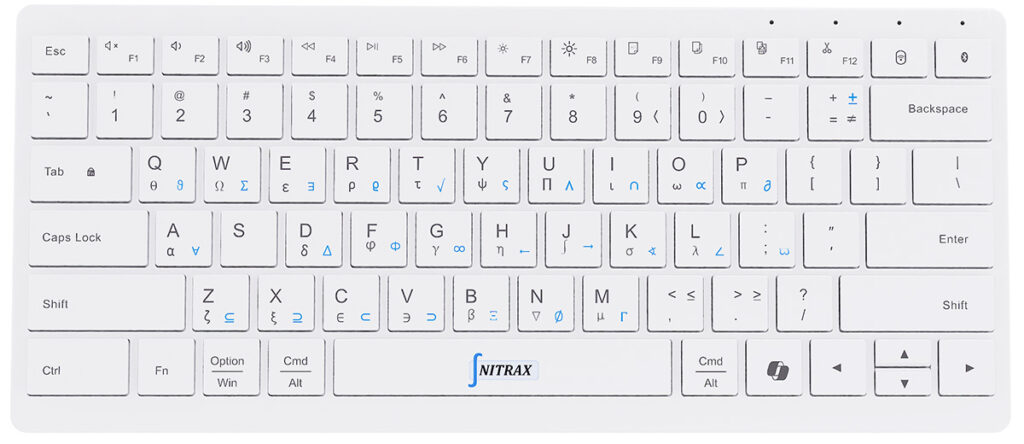
Greek letters
α, β, γ, δ, π, θ, λ, μ, …Operators
±, ×, ÷, ≤, ≥, ≠, ∞, …Special characters
∫, ∑, √, ∂, ∇, …This section shows concrete examples of how to type mathematical symbols using the Nitrax Mathematical Keyboard.
All symbols are printed directly on the keys and accessed using simple, consistent key combinations.
Keyboard layout overview
The image above displays the full keyboard layout with all available mathematical symbols.
Each symbol is mapped to a physical key, making it easy to discover and remember over time.
There is no need to memorize codes or search through menus.
Blue layer examples (Ctrl + Alt)
The blue symbols printed on the keys are accessed by holding Ctrl + Alt and pressing the corresponding key.
Examples:
ϱ →
Ctrl + Alt + R√ →
Ctrl + Alt + Tς →
Ctrl + Alt + YΛ →
Ctrl + Alt + U∩ →
Ctrl + Alt + I∝ →
Ctrl + Alt + O∂ →
Ctrl + Alt + P
You can keep Ctrl + Alt pressed and type several symbols in sequence for faster input.
Gray layer examples (Ctrl + Alt + Shift)
The gray symbols printed on the keys are accessed by holding Ctrl + Alt + Shift and pressing the corresponding key.
Examples:
φ →
Ctrl + Alt + Shift + Fγ →
Ctrl + Alt + Shift + Gη →
Ctrl + Alt + Shift + H∫ →
Ctrl + Alt + Shift + Jσ →
Ctrl + Alt + Shift + K
This second layer significantly expands the number of available symbols without increasing keyboard complexity.
Learn once, type naturally
Because the symbols are physically printed on the keys, the learning curve is very short.
After a short period of use, symbol placement becomes intuitive and typing mathematics feels as natural as typing text.
Compatibility
This section explains on which systems and in which environments the Nitrax Mathematical Keyboard and its companion software can be used.
Operating systems
Windows
The Nitrax Math Keyboard software is designed for Windows.
Fully supported on Windows 10 and Windows 11
All mathematical shortcuts (blue and gray layers) are enabled
Works globally across applications
This is the recommended and supported platform for the full Nitrax Mathematical Keyboard experience.
macOS
On macOS, the Nitrax Mathematical Keyboard works as a standard keyboard.
Basic typing works normally
Mathematical shortcuts powered by the Windows software are not available
No companion software is provided for macOS at this time
Applications
Tested in common Windows applications such as Word, Google Docs, and text editors.
Keyboard layout considerations
The Nitrax Mathematical Keyboard is based on a QWERTY layout.
On Windows systems using a QWERTY layout, all shortcuts behave as expected
On systems using other layouts (AZERTY, QWERTZ, etc.), shortcuts still work, but key positions may differ slightly from the printed legends
For best results, it is recommended to use the keyboard with a QWERTY-based system layout on Windows.
Connectivity compatibility
The keyboard supports two wireless connection modes:
2.4 GHz wireless (USB dongle) — recommended for lowest latency
Bluetooth — compatible with most modern computers
Both modes are supported on Windows and behave identically from the software’s perspective.
Intended use
The Nitrax Mathematical Keyboard is designed for people who regularly type mathematics, including students, researchers, engineers, scientists, and educators.
It is optimized for writing equations naturally inside standard documents and text editors.
Support
Having trouble with installation or usage?
- Website: mathematicalkeyboard.com
- Contact: visit our contact page
- Issues: report bugs or request features in the GitHub Issues section